
Email tracking in Office 365 from Microsoft wasn’t that great, and Microsoft has been working to improve upon it. Recently, some changes were made in Exchange Online, and a new interface was introduced. So far, you can track your messages as long as they are within your messaging environment, i.e. after they arrive at your tenant or before they leave it. But you can’t see what happens to them outside it; in other words, you won’t be able to tell the sender of an email to whom their email was sent but only the destination organisation. Let’s look at the classic message tracing features of Microsoft Office 365 and what changes were made.
Email Tracking in Office 365 via Exchange Admin centre
The standard interface for message tracking in it is not complicated. You have to select a date range, along with some information related to the messages you are looking for, and you can find all the news that fits your criteria. If you need more information about a particular letter, you’ve got to select them, and the relevant info will be displayed. You can see which messages you sent and which you received.
Email Tracking in Office 365 via the Security and Compliance Center
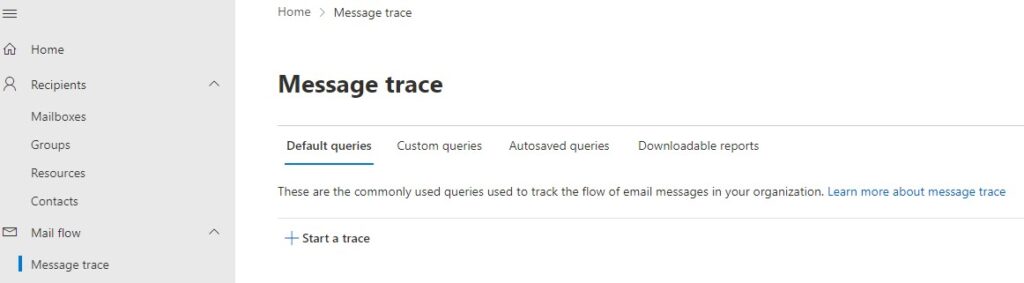
The onboard-by-default Email Tracking in Office 365 experience wasn’t that great though it fulfilled the needs of those looking for basic tracking features. In its new release, Microsoft added the messaging tracking interface in the Security and Compliance centre under the Mail Flow section.
Once you open it, you will first come across the two new sections added, i.e. Message Trace and Dashboard. Within the dashboard, a summary is provided for your viewing related to information such as total messages sent, queued messages, secure connections made etc. and more. Further, when you open the new Message Trace tab, you will find that it is much more effective for those inexperienced in email Tracking in Office 365.
The first thing in this section is the five default queries that cover most of the information administrators look for. Apart from this, you can do a lot by yourself as well. Take, for example, the first thing you do when you don’t receive regular mail in your inbox; check your spam emails. You can do that easily here via a simple search. To utilise the search function more, you can list emails from a particular sender or recipient. It also saves your last most recent ten queries in the autosave section and can save questions by choice.
Email Tracking in Office 365 Reports
You can get three types of reports from within it, a summary report, an enhanced summary report, and a comprehensive report. If you need detailed information, you can choose from the extended or enhanced summary reports, as they are compiled using archived data, thus providing more detailed information but also taking a long time. On the other hand, summary reports are limited to the last ten days of data compared to 90 days for the other two.
The exchange admin, security, and compliance centre give the same results for all the reports if running against the same data and parameters. The essential difference is the interface and format of those results. Overall, the new interface that’s introduced doesn’t overturn the table but what it does is bring a nice texture and ambience to it. It’s easier to use and does the job of saving you time and effort.
Whether you use EAC or PS, Email Tracking in Office 365 older than ten days is handled like a Historical Search. It implies that you will have to wait for your reports regardless of what. The reports’ generation could take several hours. Clicking search will open a window with the following results if you search for messages from the previous ten days:
If you need help with Email tracking or looking for more information on how Microsoft 365 can help your business further, please do not hesitate to contact an IT Support company near you.