
Collaborate Effectively in Office 365
“Collaboration can simply be described as the collective efforts of two or more people to achieve something,” doing so helps in coming up with different ideas, better results, and faster work completion.
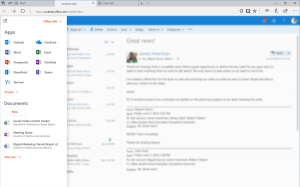
Emphasising collaboration, we’ve developed five pro tips to help you work and collaborate effectively in Office 365 Word, Excel, and PowerPoint.
Create and Save Documents to Cloud to Collaborate Effectively in Office 365
By pressing Ctrl + S (Windows) & Cmd + S (macOS), you can now save the Word, Excel or PowerPoint file to OneDrive or SharePoint by default in the desktop Office app, and once the files are committed to the cloud, you can access them across a range of devices.
Additionally, you can turn on the AutoSave feature, and enabling this will sync all changes made to the document to the cloud, eliminating the need for manual saving by the author.
Share Office 365 Documents with Others to Collaborate Effectively in Office 365
After the document is saved on the cloud, you can share it with co-authors to work in different time sets or simultaneously; this reduces individual’s effort.
Once the file is shared with co-authors, you can mention someone by typing “@” followed by the person’s name, and the co-author will be notified of this mention via email.
Track Changes Made by Co-Authors to Collaborate Effectively in Office 365
You can now track changes made in the PowerPoint file while you were away if collaborating on a deck with co-authors. Once you open the PowerPoint file again, you’ll be notified of who has made changes to the slides, and the changes will be highlighted; all this will happen automatically.
Set Permissions and Track Version History to Collaborate Effectively in Office 365
To avoid accidental, unintentional or intentional edits in the document, you can set the Word, Excel or PowerPoint document with Restrict Editing or Always Open Read-Only permission (flag). You can flag the work with Mark as Final permission if the work is complete.
Also, you can see a list of previous versions of your file(s) to compare the changes made to the original document. To do so, click on the File tab > Info > Manage Document.
If a change made to the document is found unnecessary, the Version History feature enables you to revert to a previous version of the file (Word, Excel or PowerPoint).
Access & Work on Shared Documents from Wherever You Want
Both Office.com and Windows 10 Office applications justify the meaning of collaboration; using Office.com or Windows 10 app, you can share the document with anyone you want. The user with whom the file (Word, Excel or PowerPoint) is shared can access it, irrespective of the place and device. The user can access the file/document on the web, smartphone or desktop (PC or Mac).
If the user has Office desktop apps installed and running on the system, upon clicking on the shared file link, the document will open in the app instead of the web.
Conclusion
Office 365 apps (Word, Excel or PowerPoint) offer various helpful and exciting features that allow users to enhance the level of collaboration and increase productivity, co-share ideas, assign tasks to co-authors, and much more. So, if you haven’t moved to Office 365, it is time to hire an IT consultancy company like Server Consultancy that will help you migrate to the Office 365 environment.