
Microsoft 365 has become a central tool for communication, collaboration, and file storage for many small and medium-sized businesses across London. As usage grows, so does the need to configure it securely. Default settings often leave gaps that can be exploited if not addressed. This is where the proper Microsoft 365 security settings can make a significant difference.
Why Microsoft 365 Security Settings Matter to London SMBs
London’s small businesses often manage competing priorities without dedicated in-house IT teams. Making efficient and secure use of Microsoft 365 security settings is more important. Without the correct security configurations, businesses are left vulnerable to risks that can disrupt operations, damage client relationships, and result in monetary loss.
Key reasons for reviewing your Microsoft 365 security settings include:
- Protecting financial records, client data, and intellectual property
- Ensuring compliance with UK regulations such as GDPR
- Avoiding common threats like credential theft and phishing
- Maintaining uptime and productivity through secure access
A well-configured Microsoft 365 environment is not just a best practice—it is a necessity for maintaining operational continuity and protecting your reputation.
The Growing Cybersecurity Threats Facing SMEs
Cyberattacks are no longer limited to large enterprises; they are increasingly targeting smaller organisations. Threat actors increasingly target SMEs, assuming that basic controls are either overlooked or misconfigured. Common methods include:
- Phishing emails are designed to collect login credentials
- Malware delivery through links or attachments
- Compromised accounts that provide unauthorised access to data
- Unmonitored file sharing that exposes sensitive content externally
These risks are amplified in businesses with hybrid or remote teams, where unmanaged devices or weak access controls can become points of failure.
Understanding Microsoft 365 Security Settings for SMEs
Microsoft 365 is becoming the go-to solution for SMEs seeking to streamline operations, enhance communication, and facilitate team collaboration. However, the platform’s full range of security features is often underused. Without careful configuration, businesses risk exposing sensitive information and becoming vulnerable to cyberattacks.
Overview of Built-in Microsoft 365 Security Settings Features
Microsoft 365 includes several built-in tools designed to protect users, devices, and data. These features form the foundation of a secure digital workplace when correctly configured.
Key security features include:
- Multi-Factor Authentication (MFA): Improves resilience by adding supplementary authentication alongside passwords
- Microsoft Defender for Office 365: Scans emails, attachments, and links for threats
- Data Loss Prevention (DLP): Prevents accidental or unauthorised sharing of sensitive data
- Conditional Access: Controls access based on location, device status, or user role
- Audit Logs and Secure Score: Enables ongoing monitoring and improvement of security posture
While these tools offer strong protection, most are not enabled by default, which leaves many SMEs vulnerable.
Difference Between Business Premium and Standard Plans
Understanding your Microsoft 365 subscription is crucial to maximising its security capabilities. The level of available protection depends on the licence in use.
Here is a quick comparison:
- Microsoft 365 Business Standard:
- Offers core productivity tools (Word, Excel, Outlook, Teams)
- Limited built-in security features
- Does not include Microsoft Defender for Endpoint or device management
- Microsoft 365 Business Premium:
- Includes everything in the Standard plan
- Adds advanced security tools such as Intune for device management
- Provides Microsoft Defender for Office 365 and Conditional Access policies
- Supports enhanced data protection and compliance tools
For SMEs handling sensitive data or operating in regulated sectors, the Premium plan offers a more robust security framework.
Why SMEs in London Should Rely on MSPs for Secure Configuration
Correctly configuring Microsoft 365 security settings demands a solid understanding of technical risks, licensing structures, and day-to-day business requirements. For many SMEs in London, handling this internally can be challenging, especially when considering that licenses provide the rights to implement advanced security features effectively.
Businesses can unlock significant value by collaborating with a managed service provider:
- Expertise in Microsoft 365 security settings: Tailored to business size and sector
- Proactive monitoring: Detects unusual activity or misconfigurations
- Ongoing support: Adapts security policies as your business evolves
- Cost-effective solutions: Avoids the need for full-time internal IT staff
A local MSP understands the specific challenges London businesses face, including compliance with UK data protection laws and sector-specific security requirements. By partnering with trusted IT experts, SMEs can ensure their Microsoft 365 environment is both secure and efficient.
1: Enable Multi-Factor Authentication (MFA)
MFA provides one of the most robust layers of protection within Microsoft 365 security settings, helping to prevent unauthorised entry. Access is denied unless both authentication steps are completed, even if the password is exposed.
Why MFA Matters
- Prevents account breaches: Stops unauthorised access, even with stolen credentials
- Defends against phishing: Adds protection where passwords alone fall short
- Supports compliance: Meets security expectations for SMEs handling sensitive data
Authenticator App vs SMS
While SMS is a standard method, it is less secure and more vulnerable to interception. Authenticator apps are the preferred choice for MFA:
- More secure: Difficult to intercept or spoof
- Works offline: No mobile signal required
- Time-sensitive codes: Reduces the risk of reuse
Defaulting to authenticator apps is a best practice in Microsoft 365 security settings.
How to Enforce MFA
- Go to the Microsoft Entra admin centre
- Enable Security Defaults or create Conditional Access policies
- Require MFA for all users, especially admins
- Instruct staff to install the Microsoft Authenticator app
- Monitor compliance and follow up as needed
Setting up MFA is a straightforward yet impactful step to enhance Microsoft 365 security settings across the business.
2: Secure Admin Accounts with Role-Based Access Control
Administrator accounts have broad access to your Microsoft 365 environment, making them a prime target for cyber attackers. Securing these accounts is a critical part of your Microsoft 365 security settings and should never be overlooked.
Why Admin Accounts Must Be Protected
- High-level access: Admins can change settings, access sensitive data, and create or remove users
- Common attack vector: Compromised admin accounts can result in widespread breaches
- Regulatory risk: Poor admin security may lead to non-compliance with data protection laws
Role-Based Access Control and Separate Admin Accounts
To reduce risk, it is essential to limit administrative privileges using role-based access control (RBAC):
- Assign only necessary roles: Grant permissions based on the user’s actual responsibilities
- Avoid using admin accounts for daily tasks: Create a separate account for administrative use
- Monitor privileged roles: Regularly review who has admin access and why
These practices ensure your Microsoft 365 security settings are aligned with the principle of least privilege.
Emergency Access and Role Assignment
Businesses should also prepare for unexpected access needs, such as loss of credentials or account lockouts. This can be managed securely without weakening overall protection.
Best practices include:
- Set up emergency access accounts: Use break-glass accounts with strong protection and MFA enabled
- Document role assignments: Keep an up-to-date list of who has admin privileges and under what conditions
- Audit regularly: Review admin accounts and activity to ensure everything remains appropriate
A structured and limited approach to administrative access is essential for maintaining secure Microsoft 365 security settings.
3: Enforce Conditional Access and Block Legacy Authentication
Not all users, devices, or locations should have the same level of access to your Microsoft 365 environment. Conditional access enables businesses to implement tailored controls that reduce risk without compromising productivity. It is a vital part of strong Microsoft 365 security settings.
Controlling Access Based on User, Device, and Location
Conditional Access works by evaluating specific criteria to determine whether access should be granted. This ensures only trusted users and devices can connect, and only under approved conditions.
Key conditions you can apply include:
- User role: Require stronger controls for administrators or finance staff
- Device status: Allow access only from managed or compliant devices
- Location: Block sign-ins from high-risk or unexpected geographic regions
- Sign-in risk: Detect suspicious behaviour and challenge or block the attempt
These measures help enforce the right level of access control across various parts of your business.
Why Legacy Protocols Like POP and IMAP Are a Security Risk
Older email protocols, such as POP and IMAP, do not support modern security features like MFA. If left enabled, they create backdoors that attackers can exploit using stolen credentials.
Risks associated with legacy authentication:
- Bypasses MFA: Allows unauthorised access using only a password
- Lacks modern encryption: More vulnerable to interception
- Often used in brute-force attacks: Targets mailboxes via automated scripts
Blocking these outdated protocols is a quick and essential step when reviewing your Microsoft 365 security settings.
How to Implement Conditional Access Policies Effectively
Conditional Access policies can be configured in the Microsoft Entra admin centre. To ensure effectiveness and minimise disruption, it is essential to plan and test policies before enforcing them across your business.
Steps to apply Conditional Access:
- Define key user groups: Start with high-risk roles like global administrators
- Set baseline rules: Require MFA for all users, block risky sign-ins
- Exclude emergency accounts: Keep one or two break-glass accounts unaffected
- Test in report-only mode: Review logs to ensure policies will not block legitimate access
- Enforce gradually: Apply to wider groups once tested and confirmed
Conditional access is a powerful feature within Microsoft 365 security settings, enabling you to strike a balance between flexibility and control while minimising exposure to evolving cyber threats.
4: Turn On Microsoft Defender for Office 365
Phishing attacks and malware continue to pose a serious threat to businesses, especially those without dedicated IT security teams. Microsoft Defender for Office 365 adds an essential layer of protection against these risks and should form a key part of your Microsoft 365 security settings.
Protect Users from Phishing and Malware
Cybercriminals frequently use deceptive emails, links, and attachments to trick users into disclosing their credentials or installing malicious software. Microsoft Defender for Office 365 works to intercept malicious content before it can impact users.
Key protection features include:
- Threat detection: Identifies and blocks known malware and suspicious content
- Real-time analysis: Scans links and attachments now in use
- Behavioural monitoring: Flags unusual email patterns and delivery behaviours
By proactively detecting and blocking threats, this tool helps prevent data breaches and account compromises.
Enable Safe Links and Safe Attachments for Emails and Teams
Two of the most effective features within Microsoft Defender for Office 365 are Safe Links and Safe Attachments. These provide real-time protection for users across Microsoft 365 services, including Outlook and Teams.
- Safe Links: Automatically rewrites and scans hyperlinks in emails and messages. Suspicious links are blocked or redirected to warning pages.
- Safe Attachments: Opens attachments in a secure virtual environment to detect malicious behaviour before the content is delivered to the user.
Enabling both features ensures that users are protected even if they unknowingly click on harmful content.
Recommended Baseline Settings for SMEs
For small and medium-sized enterprises, Microsoft recommends starting with built-in security policies and adjusting as needed. These presets provide robust protection while maintaining a simple configuration.
Best practice for SMEs:
- Enable preset policies: Start with the ‘Standard’ or ‘Strict’ security presets provided by Microsoft
- Apply to all users: Ensure policies cover email, Teams, SharePoint, and OneDrive
- Review alerts: Regularly check the Microsoft 365 Security Centre for threat reports and policy updates
- Combine with training: Encourage users to report suspicious emails and use caution with links
Integrating Microsoft Defender for Office 365 into your Microsoft 365 security settings provides immediate value and helps London SMBs maintain a strong, proactive security posture.
5: Apply Preset Security Policies and Anti-Spoofing Measures
Microsoft 365 includes built-in security policies designed to help businesses quickly and effectively strengthen their defences. For SMEs, especially those without a dedicated IT team, applying these presets ensures critical protections are in place without the need for complex configuration. These measures are an essential component of your Microsoft 365 security settings.
Using Microsoft’s Standard or Strict Security Presets
To simplify the setup process, Microsoft offers two main preconfigured security policy options: Standard and Strict. These policies apply across Exchange Online, SharePoint, OneDrive, and Teams.
- Standard preset: Offers recommended protection for most users, including malware scanning and link filtering
- Strict preset: Applies tighter restrictions for higher-risk environments or sensitive roles
- Automatic deployment: Policies can be applied to all users or specific groups through the Microsoft 365 Security Centre
These presets provide a practical starting point, especially for London SMBs looking to improve their Microsoft 365 security settings quickly and with confidence.
Enable Anti-Spoof Protection to Detect Impersonation
Email spoofing remains a common tactic used by attackers to impersonate trusted senders. Anti-spoofing protection helps detect and block these attempts before they reach users’ inboxes.
Key features of anti-spoofing protection:
- Sender verification: Checks if the sending domain is authorised to send on behalf of the claimed identity
- Reputation analysis: Assesses risk based on domain and sender history
- Policy enforcement: Automatically filters or flags suspicious emails that appear to come from legitimate sources
By enabling these settings, businesses can reduce the risk of phishing attacks and financial fraud caused by email impersonation.
Configure Threat Policies for Real-World Threats
To complement preset policies, SMEs should review and adjust threat management settings to reflect current risks and business requirements.
Recommended configurations include:
- Anti-malware policies: Block attachments with known risks or suspicious behaviour
- Anti-phishing rules: Detect attempts to trick users into revealing credentials
- Spam filter adjustments: Tailor thresholds to your organisation’s tolerance for false positives
- User reporting tools: Enable the “Report Message” button in Outlook for easier incident tracking
Regularly reviewing these policies ensures your Microsoft 365 security settings stay aligned with the evolving threat landscape.
6: Implement Data Loss Prevention (DLP) Policies
Data Loss Prevention (DLP) policies play a vital role in protecting sensitive business information from accidental or intentional exposure. As part of your Microsoft 365 security settings, DLP ensures that confidential data remains within the organisation and is only shared with authorised recipients.
Preventing the Accidental or Malicious Leakage of Sensitive Data
Confidential information can be unintentionally or deliberately leaked through common channels, such as email and cloud storage. DLP measures work proactively to stop sensitive data from being exposed before it leads to a security incident.
Benefits of DLP include:
- Real-time monitoring: Scans content for sensitive keywords, patterns, or file types
- Policy enforcement: Blocks or warns users before sending or sharing restricted content
- Risk reduction: Minimises exposure of data subject to GDPR or contractual obligations
Applying DLP policies as part of your Microsoft 365 security settings supports compliance and reassures clients that their data is safe.
Applying Rules to Emails, OneDrive, and SharePoint
DLP policies can be tailored to specific Microsoft 365 services and communication channels where data is most often stored or shared.
Apply DLP across:
- Exchange Online: Prevent sensitive content from being emailed outside the business
- OneDrive for Business: Monitor file uploads and restrict unauthorised sharing
- SharePoint Online: Protect internal documents and control access at the folder level
These rules can be set to target common data types such as national insurance numbers, credit card details, and financial records.
Configuring Policies in Audit or Enforcement Mode
Microsoft 365 enables policies to be implemented in stages, providing businesses with the flexibility to test rules before enforcing them.
Configuration options:
- Audit mode: Allows you to monitor violations without blocking actions — ideal for testing
- Enforcement mode: Applies the policy in full, blocking or restricting actions as defined
- User notifications: Custom messages help educate staff when actions are flagged or blocked
- Incident reports: Alerts can be sent to administrators for investigation or follow-up
Starting in audit mode allows London SMBs to fine-tune their Microsoft 365 security settings with minimal disruption, before switching to full enforcement.
7: Manage Devices with Intune and Defender for Endpoint
Endpoint devices are among the most common sources of initial compromise in cyber incidents. Whether it is a laptop, smartphone, or tablet, an unprotected or outdated device can put your entire Microsoft 365 environment at risk. Managing endpoints through Microsoft Intune and Defender for Endpoint is a critical part of robust Microsoft 365 security settings.
Enforcing Compliance Policies and Encryption
To maintain control over business data, devices must meet specific compliance requirements. Intune allows you to create and enforce rules that ensure only trusted, secure devices are granted access.
Key protections include:
- Compliance policies: Block access from devices that fail to meet your security standards
- Encryption enforcement: Require BitLocker or equivalent encryption on Windows devices
- Remote wipe capability: Remove business data from lost or unauthorised devices
These measures help ensure that business information remains secure, even when accessed remotely.
Setting Up Device Management for Mobile and Desktop Endpoints
Microsoft Intune supports a wide range of operating systems, allowing centralised management of both mobile and desktop devices. It is particularly valuable for London SMBs with hybrid or flexible workforces.
Steps to implement device management:
- Enrol devices in Intune: Set up automatic enrollment for corporate devices
- Create configuration profiles: Apply policies for security settings, Wi-Fi access, and application control
- Segment personal and business data: Use app protection policies to isolate work-related content on BYOD (Bring Your Own Device) setups
This level of control enhances Microsoft 365 security settings by ensuring each device complies with your business’s requirements.
Ensuring Patching and Updates Across All Devices
Outdated systems present a well-known entry point for malicious activity. Intune, in conjunction with Microsoft Defender for Endpoint, helps you stay up to date with updates and protect against known vulnerabilities.
Essential tasks include:
- Automated update scheduling: Ensure operating systems and applications are kept current
- Monitoring compliance: Receive alerts when a device falls behind on critical updates
- Endpoint protection integration: Enable real-time threat detection and automated response
By maintaining consistent patching and update routines, you reinforce your Microsoft 365 security settings and reduce the likelihood of successful attacks.
8: Enable Audit Logging and Monitor Secure Score
Audit logging and security benchmarking are often overlooked, yet they are crucial elements of an effective Microsoft 365 security settings strategy. These tools provide visibility, accountability, and guidance, helping small and medium-sized businesses maintain control and improve resilience over time.
Importance of Logging Activity for Investigations and Audits
Audit logs capture detailed records of user and administrator activity within Microsoft 365. This information is vital when investigating unusual behaviour or responding to a security incident.
Key benefits of audit logging include:
- Accountability: Track who accessed, modified, or shared data
- Incident response: Identify unauthorised access or changes quickly
- Regulatory compliance: Demonstrate due diligence for GDPR and other standards
- Retention: Store logs for a defined period to support future reviews or investigations
Enabling audit logging as part of your Microsoft 365 security settings ensures a clear record of activity is always available when needed.
Use Secure Score to Benchmark and Improve Your Security Posture
Microsoft Secure Score provides a measurable way to assess and improve your organisation’s security. It analyses your current settings and compares them against best practices, offering actionable insights tailored to your environment.
Benefits of using Secure Score:
- Visual dashboard: View your current security level and potential improvements
- Prioritised recommendations: Focus on changes that offer the highest risk reduction
- Trend monitoring: Track your progress over time and identify recurring issues
For London SMBs, Secure Score is a simple yet effective way to enhance Microsoft 365 security settings without needing specialist expertise.
How to Interpret and Act on Secure Score Recommendations
Secure score breaks down recommendations into manageable tasks. Each recommendation includes a risk rating and impact level, making it easier to decide which actions to prioritise.
Steps to make the most of Secure Score:
- Review regularly: Establish a monthly review process to stay aligned with the latest best practices
- Assign responsibility: Ensure someone is accountable for following up on tasks
- Implement changes incrementally: Focus on quick wins first, then tackle more complex actions
- Reassess impact: After applying changes, confirm improvements are reflected in your score
By monitoring Secure Score and following its guidance, you strengthen your Microsoft 365 security settings and reduce the risk of misconfiguration or oversight.
9: Conduct Phishing Simulations and Security Awareness Training
Technology alone cannot prevent every security incident—human behaviour also plays a vital role. Staff awareness and response training play a crucial role in maintaining robust security settings within Microsoft 365. Phishing simulations and structured awareness training help create a well-informed workforce that contributes to your organisation’s overall protection.
Build Staff Awareness to Detect and Report Phishing
Many cyberattacks begin with a single deceptive email. Phishing messages often appear convincing, mimicking trusted contacts or services to trick users into revealing credentials or clicking harmful links.
Training objectives should include:
- Spotting common red flags: Suspicious senders, urgent requests, and unusual language
- Safe response actions: How to report threats and avoid clicking unsafe links
- Understanding consequences: Raising awareness of how a single mistake can compromise business data
Embedding this knowledge across your team is just as important as configuring your Microsoft 365 security settings.
Use Built-in Attack Simulations to Test Real-World Readiness
Microsoft Defender for Office 365 includes attack simulation tools that enable businesses to test employee responses to phishing scenarios safely. These simulations help identify vulnerabilities without causing disruption.
Benefits of phishing simulations:
- Assess preparedness: Measure how many users interact with test emails
- Targeted improvement: Focus future training on areas of weakness
- Low-risk testing: Simulations are controlled and non-invasive
- Actionable insights: Receive reports on user behaviour and response times
By replicating actual threats, simulations enhance understanding and support the practical application of training.
Incorporate Regular Training into Your Security Strategy
Cyber threats evolve quickly, so security training must be ongoing. Regular updates ensure that employees remain alert and confident in their ability to recognise and report suspicious activity.
Best practices for ongoing awareness:
- Quarterly training sessions: Keep knowledge fresh and relevant
- Interactive content: Use short videos, quizzes, and real-world case studies
- Incorporate into onboarding: Ensure all inexperienced staff receive immediate training
- Monitor progress: Track participation and adjust materials as needed
Combining phishing simulations with structured training creates a strong human defence layer within your Microsoft 365 security settings, reducing the likelihood of successful attacks.
10: Establish a Robust Backup and Recovery Plan
While Microsoft 365 includes built-in data retention features, these are not intended to serve as a comprehensive backup solution. To ensure business continuity and meet compliance obligations, SMEs must implement a reliable backup and recovery strategy. A robust approach to data protection is a crucial part of Microsoft 365 security settings.
Understand the Limits of Native Microsoft 365 Retention
Microsoft offers basic recovery tools, including version history and the retention of deleted items. However, these features are time-limited and do not guard against all risks.
Limitations to consider:
- Short retention periods: Deleted emails and files are only retained for a limited time
- No proper backup: Data may be lost permanently if not recovered within the retention window
- User-dependent: Recovery often relies on individuals noticing errors or deletions promptly
Relying solely on native options may leave your business exposed to accidental or malicious data loss.
Explore Third-Party Backup Options for Mail, OneDrive, and Teams
To enhance your Microsoft 365 security settings, third-party backup solutions provide greater control, flexibility, and comprehensive coverage across key services.
Advantages of external backup tools:
- Automated daily backups: Reduce the risk of missed recovery points
- Granular restore capabilities: Recover individual items rather than entire mailboxes or libraries
- Coverage for all services: Protects Exchange Online, SharePoint, OneDrive, and Microsoft Teams
- Independent storage: Keeps backup data separate from the Microsoft 365 platform
With this in place, your data remains secure and recoverable, even in the event of service failures or cyber threats.
Defend Business Data from Mistakes and Malware
Data loss can occur at any time through human error, system failure, or malicious activity. A well-managed backup and recovery process enables you to respond swiftly and minimise operational downtime.
Key practices include:
- Regular testing of restores: Confirm that backups are working and accessible
- Immutable storage options: Prevent backups from being altered or encrypted by ransomware
- Defined recovery procedures: Ensure staff know how to initiate recovery when needed
- Audit and compliance readiness: Maintain records for regulatory requirements
Incorporating comprehensive backup and recovery into your Microsoft 365 security settings enhances your overall resilience and provides peace of mind that your business data is protected.
Bonus: Manage External Sharing in SharePoint, OneDrive, and Teams
Allowing users to share files externally can support productivity and client collaboration. However, without the proper safeguards in place, it can also increase the risk of data exposure. Managing external sharing within SharePoint, OneDrive, and Teams is a crucial aspect of maintaining effective security settings in Microsoft 365.
Control How Files and Folders Are Shared Externally
Unrestricted file sharing can lead to accidental leaks or unauthorised access. Microsoft 365 allows you to tailor external sharing settings to your business requirements.
Recommended controls include:
- Limit external sharing to specific domains: Prevent data from being shared with unknown recipients
- Disable anonymous access links: Require users to sign in before viewing or editing content
- Review shared content regularly: Monitor and revoke sharing permissions that are no longer needed
These settings help keep data within trusted environments while supporting external collaboration.
Use Expiration Dates and Restricted Permissions
Temporary and limited access reduces long-term risk and helps ensure that information is only available when needed.
Key practices:
- Set expiration dates on shared links: Automatically remove access after a defined period
- Restrict permissions: Limit users to view-only access where editing is unnecessary
- Prevent resharing: Ensure external recipients cannot forward or grant access to others
Applying these measures strengthens your Microsoft 365 security settings by reducing the chances of data being mishandled.
Apply Security Labels to Control Sensitive Content Sharing
Sensitivity labels in Microsoft Purview allow you to classify and protect information based on its sensitivity. These labels apply consistent sharing and access controls across Microsoft 365.
Benefits of using sensitivity labels:
- Automatically classify data: Apply labels based on content type, keywords, or user actions
- Enforce protection settings: Encrypt documents, restrict sharing, or apply access controls
- Support compliance requirements: Align content handling with GDPR and industry standards
Incorporating sensitivity labels into your Microsoft 365 security settings ensures that high-risk data remains protected, even when shared externally.
Ongoing Security for London SMBs
Configuring Microsoft 365 security settings is not a one-time exercise. Cyber threats are constantly evolving, and the way your business uses technology may also change over time. To maintain a strong security posture, it is essential to review your settings regularly and take a proactive approach to monitoring and improvement.
Why Microsoft 365 Security Settings Configuration Is Not a One-Off Task
Once configured, security settings must be revisited to account for:
- New features or changes within Microsoft 365
- Shifts in user behaviour or access needs
- Emerging threats and updated best practices
- Changes in regulatory or compliance requirements
Without regular reviews, even well-configured systems can become outdated and vulnerable to security threats.
Create a Monthly Checklist to Review Policies and Incidents
A structured and repeatable process helps ensure that no major areas are overlooked. A monthly checklist gives your team a practical way to stay ahead of potential issues.
Your checklist might include:
- Review Microsoft Secure Score: Track progress and implement new recommendations
- Audit user access and admin roles: Ensure permissions remain appropriate
- Check for policy violations or alerts: Investigate flagged activity
- Test backup and recovery procedures: Confirm that data remains recoverable
- Update DLP and Conditional Access policies: Adjust to reflect new risks or workflows
Building this process into your business operations ensures your Microsoft 365 security settings remain current and effective.
Partner with an MSP for Expert Support and Peace of Mind
For many small and medium-sized businesses in London, managing ongoing security in-house can be a challenging task. A reliable MSP can offer valuable support in strengthening your Microsoft 365 security settings.
Benefits of MSP support:
- Specialist knowledge of Microsoft 365 security settings
- Proactive monitoring and threat detection
- Timely updates and policy adjustments
- Access to experienced professionals without the cost of in-house resources
With an experienced MSP managing your security, you can concentrate fully on running your business.
Conclusion and Call to Action
Securing Microsoft 365 is essential for safeguarding your business against data loss, cyberattacks, and compliance risks. With the proper Microsoft 365 security settings in place, London SMEs can operate with confidence, knowing that their systems are protected and their staff supported.
Recap of the Top Microsoft 365 Security Settings
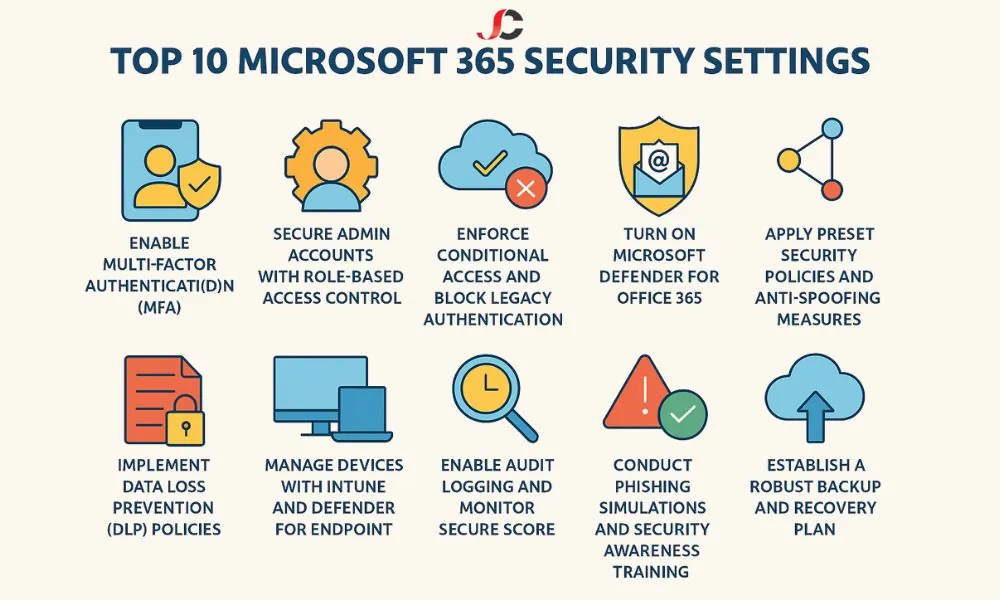
To strengthen your Microsoft 365 environment, ensure these key settings are addressed:
- Enable Multi-Factor Authentication (MFA): Strengthen your defences with multi-step verification
- Secure admin accounts: Use role-based access and separate logins
- Enforce Conditional Access: Control access based on risk, location, and device
- Activate Microsoft Defender for Office 365: Filter malicious links and attachments
- Apply preset security policies: Use Microsoft’s Standard or Strict recommendations
- Implement DLP policies: Prevent unauthorised sharing of sensitive data
- Manage devices with Intune and Defender for Endpoint: Enforce compliance and updates
- Enable audit logging and monitor Secure Score: Track and improve your posture
- Run phishing simulations and training: Educate your staff regularly
- Establish a backup and recovery plan: Protect against accidental or malicious data loss
- Control external sharing: Limit who can access and share your content
Encourage SMEs to Review Their Current Configuration
Microsoft 365 security settings are not set-and-forget. It requires regular checks, policy updates, and user awareness. London SMEs are prime targets for phishing and data breaches, particularly when security settings are left at their default settings.
Ask yourself:
- Are we using the full range of Microsoft 365 security settings?
- Is our admin access properly limited and secured?
- Do we regularly review Secure Score and update policies?
- Is our data backed up independently of Microsoft’s retention system?
If these areas appear neglected or unclear, prompt attention can make all the difference.
Partner with Server Consultancy – The Best IT Support in London
Server Consultancy offers specialised IT support, aligned with the operational needs of growing businesses. Known as the best IT support in London, we help our clients maximise the value of their Microsoft 365 subscriptions by configuring secure, efficient, and scalable environments.
We support London SMBs with:
- Comprehensive Microsoft 365 security settings audits
- Ongoing monitoring and policy enforcement
- Proactive backup and endpoint protection
- End-user training and awareness
Server Consultancy supports both new deployments and existing reviews, helping you protect your systems and future-proof your business.
Contact Server Consultancy today for expert guidance on Microsoft 365 security settings and trusted IT support in London.
What are the most critical Microsoft 365 security settings for small businesses?
Microsoft 365 offers a wide range of security features; however, for small businesses, specific settings are particularly essential for protecting users, data, and devices. These include:
–Multi-Factor Authentication (MFA): Ensures users must provide a second form of verification, such as an authenticator app or biometric input, making it harder for cybercriminals to gain access even if passwords are compromised.
–Conditional Access: Allows you to create access rules based on user roles, device status, location, and risk levels. For example, you might block access from unfamiliar IP addresses or unmanaged devices.
–Microsoft Defender for Office 365: Offers threat protection against phishing, malware, and malicious attachments in emails and Teams messages.
–Data Loss Prevention (DLP): Helps monitor and control the sharing of sensitive data like bank details or client information across email, SharePoint, and OneDrive.
–Audit Logging and Secure Score: Provides visibility into user actions and identifies weak points in your current configuration.
When implemented correctly, these Microsoft 365 security settings can significantly reduce your risk exposure. Server Consultancy, the best IT support company in London, works with SMEs to configure these features efficiently and ensure they align with business operations.
Do I need an internal IT team to manage Microsoft 365 security settings?
While having an in-house IT team is useful, it’s not a necessity, especially for SMEs with limited resources. Microsoft 365 includes user-friendly dashboards and built-in tools that allow many settings to be managed without deep technical expertise.
That said, security misconfiguration is a common issue. Many businesses either underutilise available tools or misapply them, resulting in vulnerabilities. For example, enabling MFA but allowing SMS authentication can still leave users exposed to SIM swap attacks.
This is where outsourcing to an experienced partner, such as Server Consultancy, is invaluable. As the leading IT support company in London, we assist SMEs in implementing Microsoft 365 security settings correctly the first time, providing ongoing support to ensure compliance and resilience as your business evolves.