
Long paths are becoming increasingly critical in today’s business landscape because of the complexities of file structures and nested directories. This is especially common in cloud storage solutions such as SharePoint Online and OneDrive, where syncing can fail because Windows enforces a 260-character path length limit (MAX_PATH).
Windows Server, Windows 10 and Windows 11 can lift this limit by enabling Win32 long paths. This guide shows how to enable long paths on Windows with the registry or Group Policy, and what to check afterwards.
Why You Might Need to Enable Win32 Long Paths
Today’s businesses often have intricate folder structures, primarily if they operate in data-rich environments like finance, research, or software development. Problems can occur when:
- You’re syncing files to SharePoint or OneDrive and experience errors due to path limitations.
- Your backup software faces issues while attempting to save files nested deep within multiple folders.
In such cases, enabling Win32 Long Paths can be an excellent solution to avoid these operational hiccups.
Precautions Before You Proceed
- Backup Your Registry
Before you make any changes to your registry, it’s crucial to back it up. Open the Registry Editor, navigate to File> Export, and follow the on-screen instructions.
- Administrative Rights
To make these changes, you’ll need administrative rights on the computer. If you don’t have these rights, contact your IT department.
- Supported Windows Platforms
This tweak works on the following:
- Windows Server 2016 and newer
- Windows 10 Version 1607 and newer
Step-by-Step Guide to Enabling Win32 Long Paths
Step 1: Open Notepad
Press Windows + R, type Notepad and hit Enter.
Step 2: Enter the Registry Data
Copy the following text and paste it into the Notepad window:
[HKEY_LOCAL_MACHINE\SYSTEM\CurrentControlSet\Control\FileSystem]
"LongPathsEnabled"=dword:00000001

Step 3: Save the File
Click File> Save As, choose a location, name your file EnableLongPaths.reg, and set Save as type to All Files. Click Save.
Step 4: Run the .reg File
Please navigate to the saved .reg file and double-click it. Confirm any dialogue boxes and administrative prompts that appear.
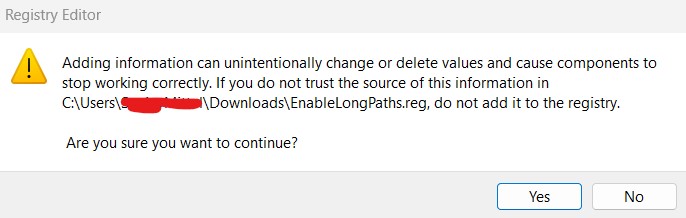
Step 5: Confirmation
A confirmation dialogue will indicate that you’ve successfully altered your registry settings. Click OK.
Fully Qualified vs. Relative Paths
Fully Qualified and Relative Paths are two essential concepts that often come into play in the context of file systems and directories. A Fully Qualified Path is an absolute address that points to a specific location on your file system, beginning from the root directory. It provides the complete details needed to locate a file or directory independent of the current directory. For instance, on a Windows system, a Fully Qualified Path might look like C:\Users\YourName\Documents\file.txt.
On the other hand, a Relative Path starts from the current directory and does not include details about the root. For example, if you are already in the C:\Users\YourName\Directory, the Relative Path to the same File could be Documents\file.txt.
Understanding the distinction between Fully Qualified and Relative Paths is crucial, especially when dealing with Long Paths or navigating complex file structures. It affects how your system or applications interpret the location of files and folders.
Comprehensive IT Support Services
If you encounter any challenges while implementing this change, remember that professional IT support services are just a call or email away. Our team can assist you in making seamless, secure adjustments to your IT infrastructure.
Questions?
If you have questions or encounter issues, please get in touch with us. Our experienced team is here to provide the support you need.
Conclusion
Enabling Win32 Long Paths is a practical way to overcome limitations in complex, data-rich environments. This guide should help you make this tweak safely and effectively. Always back up your registry before making any changes and consult professional IT support services for complex challenges.
What are the long paths in Windows?
Long Paths in Windows refer to file paths that exceed the standard 260-character limit imposed by the Windows MAX_PATH constraint. By enabling the Long Paths feature, you can utilise file paths that extend beyond this limitation, making it easier to manage intricate file structures and nested directories. This is particularly useful in cloud storage systems like SharePoint and OneDrive, where deep folder hierarchies are often necessary.
How do I allow long file paths in Windows?
To allow Long Paths in Windows, you must modify your system’s registry settings or employ Group Policy Editor to bypass the 260-character limit. For those comfortable editing the registry, create a .reg file containing specific code to change the “LongPathsEnabled” setting to 1. After double-clicking the .reg file and confirming the change, your system will support Long Paths. Always remember to back up your registry before making such adjustments. Suppose you’re using Windows Server or Windows 10 Pro. In that case, you can also make this change through the Group Policy Editor under “Local Computer Policy” > “Computer Configuration” > “Administrative Templates” > “System” > “Filesystem” and then enable the “Enable NTFS long paths” option.
What is the longest folder path in Windows?
The longest folder path in Windows, when Long Paths are not enabled, is restricted to 260 characters due to the Windows MAX_PATH limitation. This includes the drive letter, colon, backslash and null termination character. However, when you enable Long Paths, you can extend this limit to approximately 32,767 characters, although some applications may not support such lengthy paths. It’s essential to remember that each component (folders or file names) within the entire path must still be less than 255 characters.
How do I fix long paths in Windows 10?
You have several options to fix Long Paths issues in Windows 10. You can enable the Long Paths feature through the Windows Registry or the Group Policy Editor. For Registry edits, create a .reg file that contains the required code to set the “LongPathsEnabled” value to 1. Double-click the .reg file and confirm that the action will activate Long Paths support. Always back up your registry before making such changes for added security. Alternatively, if you’re using Windows 10 Pro, you can navigate to “Local Computer Policy” > “Computer Configuration” > “Administrative Templates” > “System” > “Filesystem” and enable the “Enable NTFS long paths” option. Both methods will effectively resolve Long Paths issues, allowing you to work with paths longer than the 260-character limit imposed by the Windows MAX_PATH constraint.