
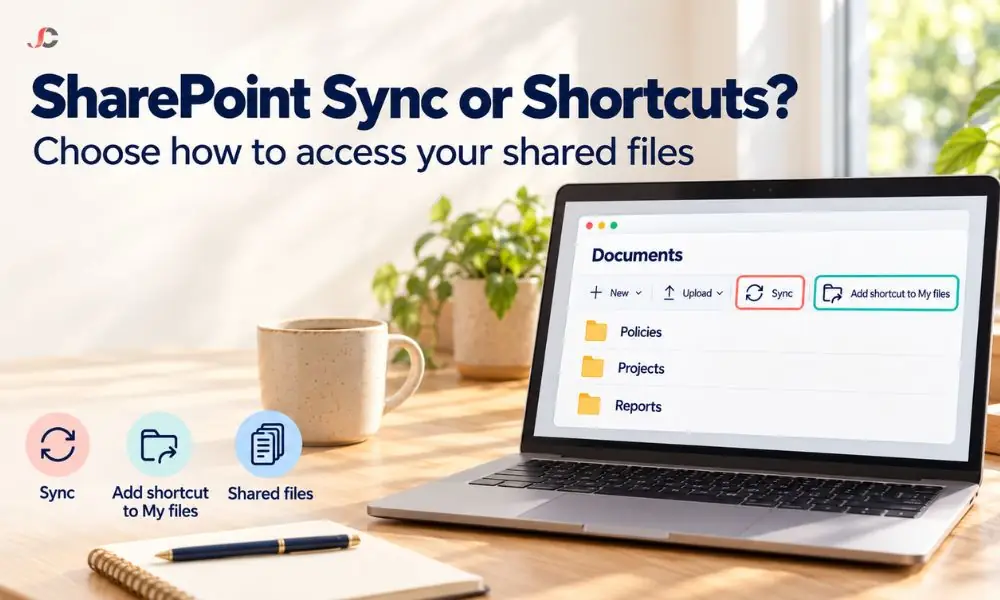
Every SharePoint document library offers two ways to work with its files from your computer: Sync and Add shortcut to My files. Most staff click whichever button they see first, leading to duplicate folders, sync errors, and files stored in places IT cannot see. This guide compares sync vs add shortcut to OneDrive for SharePoint Online libraries and explains which one UK SMEs should standardise on.
Key Takeaways
- Same engine: Both choices use the OneDrive application and Files On-Demand, ensuring the file remains online only until it is opened.
- Shortcuts follow the user: The shortcut will reside in My files and will be available on all devices where the user logs into OneDrive.
- Sync is per device: Sync needs to be configured separately on each computer, but it works well for guests and legacy workflows.
- Never mix them: Mixing the two on the same library will cause sync issues, so choose one approach per library.
What is the difference between Sync vs Add Shortcut to OneDrive?
Sync connects a SharePoint library or folder directly to one computer through the OneDrive app. Add Shortcut to OneDrive places a link to that library or folder inside your own My files, which the OneDrive app then syncs to every device you use. Both show the files in File Explorer or Finder.
The difference is where the connection lives. A synced library is tied to one device and appears under your organisation’s name in File Explorer. A shortcut is tied to your account, so it appears inside your OneDrive for Business folder on your laptop, your phone and the web.
| Feature | Sync | Add Shortcut to OneDrive |
| Where it appears | Under your organisation’s name in File Explorer | Inside your OneDrive (My files) |
| Devices covered | Only the device where you clicked Sync | Every device signed in to your OneDrive |
| Mobile and web access | Not added | Added automatically |
| Files On-Demand | Yes | Yes |
| What you can add | Libraries and folders | Shared folders you can edit, not single files |
| External guests | Supported through B2B Sync | Check before relying on it |
How does each option use storage and work offline?
Both options behave the same way on your device. With Files On-Demand, files appear in File Explorer but stay online-only until opened. Opened files become locally available, and files marked Always keep on this device stay downloaded. Any locally available file works offline, whichever method you used.
A common myth in sync vs add shortcut to OneDrive comparisons is that shortcuts use no local storage and need an internet connection. That was never quite right because the OneDrive app syncs shortcuts like any other folder. Microsoft explains the icons and offline rules in its Files On-Demand guide.
The real storage difference is in the cloud. Shortcut folders do not count against your own OneDrive quota, because they use the owner’s storage. For most SMEs, this matters less than local disk space, which Files On-Demand already manages for both options.
When should you use Sync instead of a shortcut?
Use Sync if the user is an external guest, if the application requires a consistent path for the folder on a single machine, or if IT uses Group Policy to distribute the library to devices automatically. Another beneficial use case for Sync is when the library is part of the device, not the user, on a shared computer.
- External guests: Microsoft enables external guests to sync shared libraries using B2B Sync, if the content is shared at the site or folder level.
- Fixed folder paths: Some older desktop applications, such as accounting or CAD programs, might be expecting the same folder location on all computers.
- Automatic deployment: Group Policy can sync team site libraries to devices without any action from the user.
- Device-owned libraries: A reception computer or meeting room computer might require a library irrespective of who logs into it.
The trade-off is maintenance. Each synced library must be set up again on every new or rebuilt laptop, which creates helpdesk work for growing teams.
When is Add Shortcut to OneDrive the better choice?
Add Shortcut is the better choice for most staff in most SMEs. It follows the user across every device, needs no setup on new laptops and keeps shared folders visible in OneDrive on the web and mobile. It suits hybrid workers who move between office, home and client sites.
Shortcuts also make onboarding easier. Once a new computer is configured, the user logs into OneDrive and all the shortcuts appear automatically without having to configure the libraries again. This alone saves time for companies that frequently refresh their computers.
There are limits to plan around. Microsoft allows up to 100 folder shortcuts from one person’s OneDrive or Teams site and up to 1,000 shortcuts in total. You can only add shared folders where you have edit permission, not individual files. The full rules are in Microsoft’s guide to adding shortcuts to shared folders.
Can you use Sync and Add Shortcut on the same library?
No. OneDrive will not sync the same content to two places on one computer. If you add a shortcut to a library you already sync, or sync a library you already have a shortcut to, OneDrive shows a sync error. Fixing it usually means removing the shortcut or stopping the sync.
It happens quite often when employees make their own decisions. Someone syncs the entire library, then creates a shortcut to the folder and gets an error message from OneDrive. The most reliable solution would be to delete the shortcut and wait for OneDrive to resolve the issue.
The sync vs add shortcut to OneDrive decision should therefore be made once per library, not by each user. For most firms, this means shortcuts for staff and Sync only for the specific exceptions listed above.
How can administrators control which option staff use?
Shortcuts can be turned off using SharePoint Online PowerShell, or the Sync button can be disabled in the library settings of specific libraries. Group Policy can automatically sync selected libraries with managed devices. These options should be used to ensure that only one option is used for each library.
PowerShell
Set-SPOTenant -DisableAddShortcutsToOneDrive $True
Ensure the policy is approved before implementing and refer to the latest Microsoft guidelines on existing shortcuts. Write down the decision in your IT policy so that everyone can be consistent.
For example, a client clean-up might uncover 12 OneDrive sync conflicts, with standardising on ‘Add shortcut to OneDrive’ and removing duplicate sync connections taking around two hours.
Which option is more secure for UK SMEs?
Neither option is more secure on its own because both download files to the device when they are opened. Security depends on the device. Encrypted, managed laptops with Intune policies, conditional access and remote wipe protect synced and shortcut files equally. Unmanaged devices put both at the same risk.
For regulated companies, the key question is what should happen if a laptop is lost. Under the UK GDPR, personal data breaches could arise from client information stored on an unencrypted device. The most at risk are law firms storing client matter files and recruitment agencies storing candidate CVs:
- Device encryption: Require BitLocker or FileVault on every device that runs OneDrive.
- Managed devices only: Use conditional access so only compliant devices can sync company libraries.
- Free up space policies: Keep files online-only where possible, so less data sits on each laptop.
- Remove versus delete: Train staff to use Remove shortcut, because deleting a shared folder removes it for everyone.
These measures belong in your wider data security controls, not in the button choice. Get the device controls right first, then standardise on one access method.
Settling sync vs add shortcut to OneDrive is simple once your devices are managed and the rule is written down. Server Consultancy helps UK SMEs in finance, legal and recruitment set up OneDrive and SharePoint, choose the right Microsoft 365 subscriptions and keep files secure. Talk to our Microsoft 365 support team about standardising your file access.
Does Add Shortcut to OneDrive use space on my computer?
Only for files you open or mark to keep on the device. With Files On-Demand, the rest stay online-only, just like with Sync.
Can I use shortcut files offline?
Yes. Any shortcut file that has been opened or marked Always keep on this device works offline. Online-only files need an internet connection, no matter which method you used.
What happens if I delete a shortcut?
Use Remove shortcut from My files, which removes it only for you. Deleting the folder itself deletes it for everyone, and only the owner can restore it.
Does a shortcut count against my OneDrive storage?
No. Shortcut folders count against the owner’s storage, not yours. Your own OneDrive quota is unaffected.
Can I add a shortcut to a single file?
No. You can only add shortcuts to shared folders where you have edit permission. To keep one file handy, place it in a folder you sync or shortcut.
Can external guests use Add Shortcut?
Guests should use Sync, which Microsoft supports through B2B Sync for content shared at the site or folder level. Test shortcuts with a guest account before relying on them.
Does Add Shortcut work on a Mac?
Yes. Shortcuts sync through the OneDrive app on Mac in the same way as on Windows. They appear inside your OneDrive folder in Finder.
Does Microsoft recommend one option over the other?
Microsoft documents both options and does not formally rank them. Many administrators prefer shortcuts for staff because they follow the user across devices.