
Although Publisher is not included in Microsoft 365, many businesses still have .pub files for newsletters, letterhead, brochures, correspondence, and more. The Microsoft Publisher retirement does not delete those files, but it removes the easiest way to open and edit them. This guide explains what changed, how to recover and convert your files, and which Microsoft 365 productivity apps now manage each task.
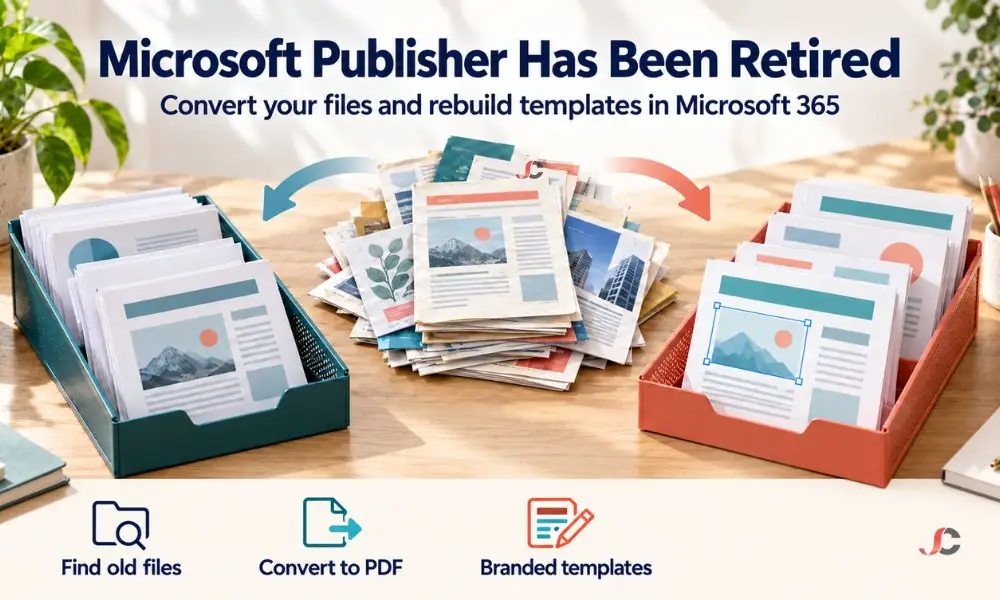
Key Takeaways
- Microsoft 365: The last day of support for Publisher in Microsoft 365 will be after 1st October 2026.
- Perpetual versions: The last perpetual version that is supported is Office LTSC 2021, and its end date is 13th October 2026.
- Files: Save your completed files as PDFs and those that you are still working on as Word documents.
- Replacements: Word, PowerPoint and Microsoft Create templates are recommended by Microsoft.
What happened to Microsoft Publisher in October 2026?
Microsoft retired the software in two steps. The software could not be accessed by Microsoft 365 users after October 1, 2026. In addition, support for perpetual licenses ceased on October 13, 2026, after support for Office LTSC 2021 ended. Further, Office LTSC 2024 did not include Publisher.
| Licence type | Date | What changed | What still works |
| Microsoft 365 subscription | On or shortly after 1 October 2026 | Publisher removed; .pub files can no longer be opened or edited in Publisher. | Your .pub files remain in storage, untouched. |
| Perpetual Publisher 2016, 2019 or 2021 | 13 October 2026 | Support ended, with no further security updates | The installed app still runs, without support |
| Office LTSC 2024 | Not applicable | Publisher was never included | Not applicable |
Microsoft’s own Publisher retirement notice set out both dates and recommended converting files beforehand. Firms that did not convert in time can still recover their files, as the next sections explain.
Can you still open .pub files after the Microsoft Publisher retirement?
Not through Microsoft 365. After the Microsoft Publisher retirement, subscribers can no longer open or edit .pub files in Publisher. You can still open them on a computer with a perpetual copy of Publisher 2016, 2019 or 2021, which runs without support, or import them into LibreOffice. This free office suite reads Publisher documents.
The most practical route is a single conversion machine. If anyone in the firm still has a perpetual copy of Publisher installed, use that computer to export the files you need, then remove Publisher once the job is done.
Do not keep an unsupported Publisher installation for an extended period, as Microsoft Publisher will no longer be supported after October, and retaining it could expose your business to unnecessary security risks.
LibreOffice can import Publisher documents for viewing and basic export. Complex layouts may not import perfectly, so check important files page by page.
How do you find every Publisher file your firm still holds?
Search SharePoint and OneDrive for files with the .pub extension, check shared drives and any old file servers, and ask the teams that produce newsletters, marketing material and client notices. Microsoft’s guidance lists local storage, OneDrive, and SharePoint as places to check before deciding which files to keep.
- SharePoint: Search each site that holds marketing, HR or client communications for .pub files, starting with your SharePoint document libraries for templates and published material.
- OneDrive: Ask staff to search their own storage, because many Publisher files were created and kept in staff OneDrive accounts rather than shared libraries.
- File servers and shared drives: Search for legacy shares if your company has recently moved to Microsoft 365.
- Local devices: Look at the desktops of longstanding employees who have worked on newsletters or events.
Not every file needs saving. Prioritise documents still in use, such as letterheads, forms and recurring newsletters, and archive the rest as PDFs.
Record what you find in a simple inventory: file name, location, owner and a decision to keep, archive or delete. The list keeps the conversion work manageable and shows later what happened to each file.
How do you convert Publisher files to PDF or Word?
Open the file in Publisher and use Save As to export it as a PDF, which preserves the layout for viewing, printing and record-keeping. If you need to keep editing the content, open that PDF in Word, which converts it to an editable document. Expect to tidy the layout afterwards, because Word handles text better than design.
Not every file needs the same treatment. Use this rule of thumb for each one.
- PDF only: finished items such as past newsletters, event flyers and published client notices.
- PDF and Word: documents you will reuse, such as letterheads, forms and price lists.
- Rebuild: complex designs used regularly, which are often quicker to recreate in PowerPoint than to repair after conversion.
Can you convert Publisher files in bulk?
Yes. Microsoft published a sample PowerShell script that converts all Publisher files in a folder to PDF and keeps running if a file fails. The script automates Publisher’s own export, so run it on a computer that still has a working copy of Publisher. For large volumes, a third-party converter may be faster.
Test the script on a small folder first and check the results. Keep the original .pub files until you have confirmed that every converted PDF opens and looks correct.
Which Microsoft 365 app should replace each Publisher task?
Microsoft recommends Word for text-led documents such as newsletters, letterheads, labels and envelopes, and PowerPoint for visual pieces such as posters, banners and signs. Business cards, brochures, certificates and calendars work in either app. Microsoft Create offers ready-made templates, so most firms need no new software.
| Publisher task | Recommended app | Notes |
| Newsletters and letterheads | Word | Build once as a Word template |
| Labels, envelopes and forms | Word | Use the mailings and table tools |
| Posters, banners and signs | PowerPoint | Set a custom slide size for print |
| Brochures and business cards | Word or PowerPoint | PowerPoint gives freer layout control |
| Certificates and calendars | Word or PowerPoint | Start from a Microsoft Create template |
PowerPoint often surprises people as a design tool. It manages layered images, shapes and precise positioning well, and it exports cleanly to PDF for printing.
How should regulated firms manage converted files and brand templates?
Store all completed client documents as PDFs as the official version, name files consistently, and save them in the appropriate SharePoint library. Next, recreate letterheads, forms, and newsletters in Word and PowerPoint templates, then make them available in a SharePoint organisational asset library for all employees to use.
Law firms, financial advisers and recruiters often must show what was sent to clients and when. A dated PDF is a stable record, whereas an editable file can change after the event.
Apply your existing retention rules to the converted files, just as you would to any other client record. If you use Microsoft Purview retention labels, label the PDFs when you move them into SharePoint, and delete the original .pub files only once your retention policy allows it.
An organisation assets library makes approved templates appear when staff create a new document in the Word, Excel and PowerPoint desktop apps. Microsoft’s organisation assets library guidance notes that the desktop apps need Microsoft 365 Apps version 2002 or later, and PowerPoint on the web needs an Office 365 E3 or E5 licence.
Check which Microsoft 365 subscription options your staff have before relying on browser templates. This feature is not available in Word or Excel on the web.
Who can help with the move away from Publisher?
Server Consultancy helps UK firms in finance, legal and recruitment find and convert legacy Publisher files, rebuild branded templates in Word and PowerPoint, and set up a SharePoint organisation assets library. We manage the clean-up as part of day-to-day Microsoft 365 management, so your team keeps producing client material without interruption.
Our Microsoft 365 support team can run the file search, perform the conversions, and remove unsupported Publisher installations once the Microsoft Publisher retirement work is complete. Contact us to plan the move.
Can Microsoft 365 users still open Publisher files?
Not in Publisher. Since the Publisher program is not available to users of Microsoft 365 from 1st October 2026, it is impossible to view .pub files using Microsoft 365.
Will Publisher 2019 or 2021 keep working?
Yes, but not with any assistance. The last day to receive assistance for the perpetual versions was 13th October 2026; therefore, no further security updates are available.
Is there a free way to open .pub files?
Yes. LibreOffice, a free office suite, can import Publisher documents. Complex layouts may need checking after import.
Does converting a Publisher file to Word keep the layout?
Not exactly. Converting through PDF to Word keeps the text, but the layout usually needs tidying.
Should we keep PDFs or Word versions of old newsletters?
Keep PDFs for finished newsletters as the record of what was sent. Keep Word versions only for content you will edit again.
Can we share branded templates with every staff member?
Yes. A SharePoint organisation assets library makes approved Word and PowerPoint templates appear in the desktop apps for all staff.
Should we uninstall Publisher from staff computers?
Yes, but after you have converted it. Since an unsupported application does not receive security patches, do not run it on more than one computer.
Does the Microsoft Publisher retirement affect Office LTSC 2024?
Office LTSC 2024 never included Publisher. Microsoft left it out because it was planned for retirement.