
Confidential meetings are routine for UK SMEs that run their business in a Microsoft 365 environment. Board packs, client financials, candidate shortlists, and legal strategy are shared on screen every day, and a single screenshot can move that information beyond your retention and data loss prevention policies. This guide explains how to make Microsoft Teams prevent screen capture, what the feature protects and where its limits lie.
Key Takeaways
- Licence: Prevent screen captures is a Teams Premium feature, and only the meeting organiser or co-organiser needs the licence.
- Protection: Screenshots and screen recordings of the meeting are blocked or blacked out on Teams for Windows, iOS and Android.
- Fallback: Attendees on the Mac desktop app, Teams on the web and virtual desktops join with audio only.
- Gap: It cannot stop a phone camera, so pair it with watermarks and sensitivity labels.
How does Microsoft Teams prevent screen capture in meetings?
Prevent screen captures is a per-meeting Teams Premium option that lets Microsoft Teams prevent screen capture of the meeting window. On supported apps, built-in screenshot tools and most third-party capture apps record a black area or are blocked. Attendees on unsupported apps can still join, but only with audio, so protected content never appears on their screens.
The feature achieved GA release in November 2025. It is turned off by default and resides within Advanced protection under meeting options and is therefore not controlled by any Teams Meeting policy. This lets each meeting organiser decide independently.
On iOS and Android, protection covers the whole meeting experience, including the stage, chat, participant list, notes, banners and Copilot panels. Attendees who try to take a screenshot see a message explaining that screen capture is restricted. On Windows, the meeting window and any pop-out windows appear as a black rectangle in screenshots.
How do you turn on Prevent screen captures in Teams?
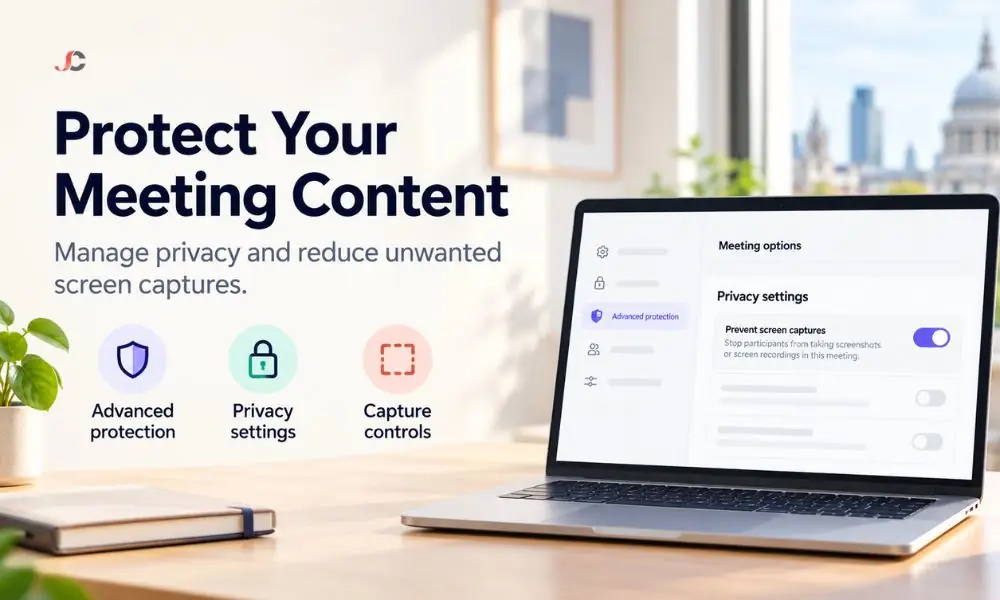
A meeting organiser or co-organiser with a Teams Premium licence turns it on in the meeting options. Open the meeting from the Teams calendar, select Options and then Settings, open Privacy settings under Advanced protection, and switch on Prevent screen captures. Select Apply and make the change before the meeting starts.
- Open the Calendar in Microsoft Teams and select the meeting.
- Select Options, then the Settings button.
- Under Advanced protection, select Privacy settings.
- Turn on the Prevent screen captures toggle.
- Select Apply.
Timing matters. If you switch the option on after the meeting has started, it only applies once every attendee has left and rejoined. For recurring confidential meetings, open the options from the series and confirm the setting applies to every occurrence.
Which licence do you need to block screen capture in Teams?
You need the Teams Premium add-on licence, but only for the organisers and co-organisers who protect meetings. Attendees, guests and external participants do not need Teams Premium, only a supported Teams app. In most firms, this means licensing partners, directors, and their assistants rather than every staff member.
Teams Premium is located above an already existing Microsoft 365 licence which comes with Teams. All Teams Premium features are included in one licence, including meeting watermarks, meeting options through sensitivity labels, and meeting templates.
There is no tenant-wide switch for this feature. Administrators assign licences and keep attendee devices on supported, up-to-date Teams apps. Enrolling phones and tablets through mobile device management with Microsoft Intune makes enforcement much easier.
Which devices and apps support Teams screen capture prevention?
Teams for Windows desktop, Teams for iOS and Android, and Microsoft Teams Rooms on Windows are supported. Teams for Mac desktop, Teams on the web, virtual desktop sessions, Teams Rooms on Android and Cloud Video Interop are not supported. Attendees on those clients join the meeting with audio only and cannot see shared content.
| Platform | Supported | What attendees experience |
| Teams for Windows desktop | Yes | Screenshots show a black rectangle over the meeting window and pop-outs |
| Teams for iOS and Android | Yes | Screenshots and recordings are blocked, with a message that capture is restricted. |
| Microsoft Teams Rooms on Windows | Yes | Supported for in-room attendees |
| Teams for Mac desktop | No | Audio only |
| Teams on the web | No | Audio only |
| Virtual desktop (VDI) | No | Audio only |
| Teams Rooms on Android and Cloud Video Interop | No | Audio only |
The audio-only fallback catches many organisers off guard. A client joining from a Mac or a consultant on a locked-down virtual desktop will hear the meeting but see nothing. Before you let Microsoft Teams prevent screen capture in external meetings, send attendees joining instructions and check that your meeting rooms run Microsoft Teams Rooms devices on Windows.
Large meetings have a further limit. In a meeting with more than 1,000 attendees, anyone who joins after the first 1,000 receives audio only. The feature is designed for private, scheduled meetings; Microsoft is phasing out webinar support, and town halls no longer support it.
What can screen capture prevention not stop?
It will not prevent someone from taking a picture of the screen with their phone or another camera. Microsoft also says it can block most, but not all, third-party screen-capture apps. It also protects only the live session, so any recordings or files sent through the chat should use additional security measures.
- Second devices: A phone camera pointed at a monitor bypasses every software control.
- Meeting recordings: Microsoft documents the setting as blocking attendee screenshots and screen recordings. Control who can record the meeting itself through your Teams meeting policies.
- Chat and files: Documents shared in the meeting chat follow your SharePoint and OneDrive permissions, not this setting.
- Audio-only attendees: Anyone on an unsupported client can still hear everything that is said.
Which other Teams Premium controls should you combine it with?
Combine it with watermarks, sensitivity labels and meeting templates. Watermarks overlay each attendee’s email address on shared content and video, which deters camera photographs. Sensitivity labels and templates apply protective settings automatically, so security does not depend on an organiser remembering to toggle a setting before every confidential meeting.
Administrators enable watermarks in the Teams admin centre under Meetings > Meeting policies > Content protection, or with PowerShell. Microsoft explains each option in its watermark documentation.
PowerShell
Set-CsTeamsMeetingPolicy -Identity Global -AllowWatermarkForScreenSharing $True
Set-CsTeamsMeetingPolicy -Identity Global -AllowWatermarkForCameraVideo $True
Watermarks turn off the large gallery view and content from the camera. Microsoft Stream applies the watermark at playback, and downloads of watermarked recordings are off by default. A downloaded .mp4 file carries no watermark, so keep that default unless there is a clear business need.
A sensitivity label such as Highly Confidential can enforce watermarks even where the meeting policy would otherwise leave them off. Custom meeting templates do the same for recurring meeting types, such as board meetings or client reviews. An administrator configures both once, and organisers apply them.
How should UK regulated firms use Teams screen capture prevention?
Use it for meetings where exposure of client or personal data would create regulatory risk and record that decision in your information security policy. Technical and organisational measures are required under UK GDPR to ensure that personal data is protected; screen capture protection is one of those technical measures used during live meetings.
- Law firms: The SRA Code of Conduct requires solicitors to keep the affairs of clients confidential. Protect case strategy meetings and client calls that show privileged documents on screen.
- Financial services firms: FCA-regulated firms must maintain adequate systems and controls. Protect meetings that review client portfolios, lending decisions or board risk reports.
- Recruitment agencies: Candidate CVs and salary details are personal data under UK GDPR. Protect shortlist reviews with clients, especially when external hiring managers attend.
Firms that have Microsoft Teams prevent screen capture in confidential meetings should document which meeting types require protection, who holds Teams Premium licences and how exceptions are approved. That record shows the ICO or your regulator that the control is deliberate rather than ad hoc. For a broader review of your cyber security controls, start with the data your meetings expose most often.
Screen capture prevention works best as part of a planned set of controls covering licences, labels, templates and managed devices. Server Consultancy helps UK SMEs in finance, legal, and recruitment configure secure Teams environments. Talk to us about a Teams Premium rollout for your organisation.
Does Prevent screen captures work in Teams on the web?
No. Teams on the web is not a supported client, so browser attendees join with audio only. Ask attendees to use the Teams desktop app on Windows or the Teams mobile app.
Does it work in the Teams desktop app for Mac?
No. According to Microsoft, the Mac desktop app is unsupported; therefore, Mac users will participate in the conference with audio only. Either give those participants a supported device or use watermarks.
Do external guests need a Teams Premium licence?
No. Only the organiser or co-organiser who turns the feature on needs Teams Premium. Guests need only a supported Teams app on Windows, iOS or Android.
Can attendees still photograph the screen?
Yes. No software can prevent this. The watermark protects against this by adding each participant’s email address to the image.
Can administrators turn it on for every meeting?
No. The setting is not governed by Teams meeting policies, so each organiser turns it on per meeting. Administrators control who holds Teams Premium licences and which devices internal attendees use.
What happens if I turn it on during a meeting?
The change only takes effect after everyone leaves and rejoins. Set it before the meeting starts to avoid disrupting attendees.
Does it work in meetings with over 1,000 attendees?
Partly. The first 1,000 attendees receive the protected experience, and anyone joining after that receives audio only.
Does it work in town halls and webinars?
Town halls no longer support it, and Microsoft is phasing out webinar support. Use it for private, scheduled meetings.