
OneDrive storage limits determine how much data fits before they take effect. Users generally start with 1 TB of storage, but many companies aren’t sure how to raise their limits or how Microsoft’s 2026 storage changes will affect them. This guide sets out the current limits, explains what counts against them, and shows how to expand or restructure OneDrive for Business storage before disruption affects fee-earning work.
Key Takeaways
- Default business quota: The default plan for business use in Microsoft 365 has a standard allocation of 1 TB per user. Admins can raise this to 5 TB on eligible plans, and Microsoft Support can raise it to 25 TB.
- File size cap: OneDrive now offers 250 GB per file, up from 100 GB previously.
- Over-quota consequence: An account that exceeds its allowed storage space will be put under the read-only mode, where no new data can be saved until the excess data is deleted.
- 2026 alignment change (MC1310684): Microsoft scheduled this change for July 2026, so OneDrive for Business storage now follows each customer’s licence entitlement.
What are the current OneDrive storage limits across Microsoft 365 plans?
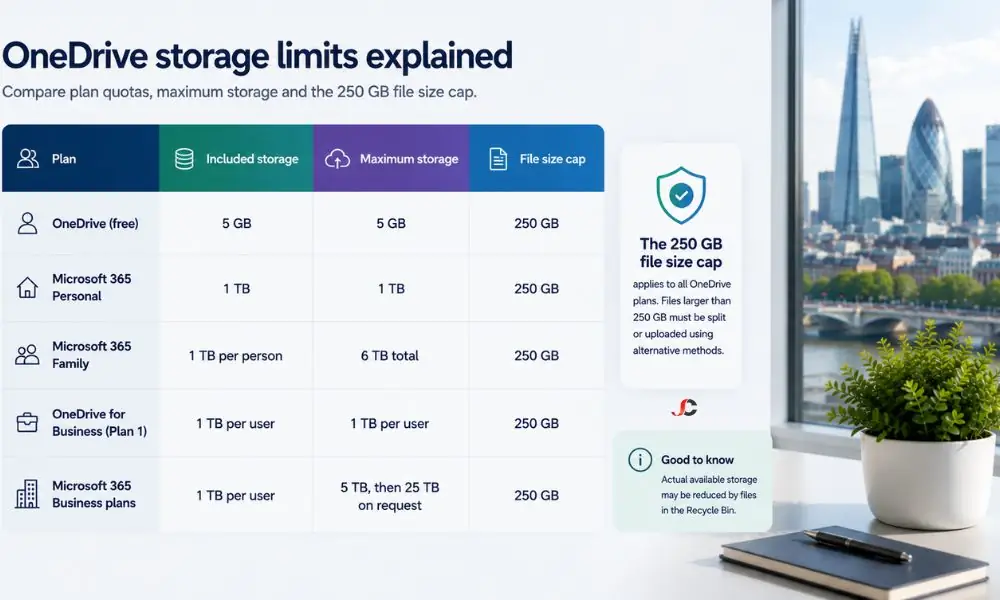
OneDrive storage limits range from 5 GB on free personal accounts to 1 TB by default on most business plans. Administrators can raise business storage to 5 TB per user, and up to 25 TB on request. Every current plan supports individual files of up to 250 GB.
The figures depend entirely on the account type and the subscription behind it. Free personal accounts remain capped at 5 GB, while a Microsoft 365 Personal subscription provides 1 TB, and a Family subscription provides up to 6 TB shared across up to 6 people. Business plans are where most UK organisations operate, and their quotas behave differently again.
There are no longer any plans with unlimited OneDrive storage available. Microsoft discontinued the old OneDrive for Business Plan 2, which offered unlimited storage. It used to be one of its flagship products, but there are now no offers left with unlimited storage space.
| Plan | Included storage | Maximum storage | File size cap |
| OneDrive (free) | 5 GB | 5 GB | 250 GB |
| Microsoft 365 Personal | 1 TB | 1 TB | 250 GB |
| Microsoft 365 Family | 1 TB per person | 6 TB total | 250 GB |
| OneDrive for Business (Plan 1) | 1 TB per user | 1 TB per user | 250 GB |
| Microsoft 365 Business plans | 1 TB per user | 5 TB, then 25 TB on request | 250 GB |
How much OneDrive storage does each business plan include?
For OneDrive for Business Plan 1 and other Microsoft 365 plans, there is always 1 TB of storage per user. However, depending on the plan and the number of licensed users, a capacity of 5 TB per user can be allocated via the Microsoft 365 Admin Centre.
It must be noted that the 5TB level is not automatic; it usually requires a specific plan and enough licensed users. Afterwards, the per-user limit can be changed in the admin panel. Companies that do not satisfy these criteria have the 1TB default level.
What is the largest file size OneDrive will accept?
OneDrive accepts individual files of up to 250 GB, raised from the previous 100 GB ceiling. This limit applies to both OneDrive for Business and personal plans, and the same 250 GB cap also governs files uploaded to SharePoint Online.
The increase matters for sectors managing large datasets, media, or archive packages, and is set out in Microsoft’s documented limits. Even a single 250-gigabyte file will use up quite a lot of the total 1-terabyte quota; file size needs to be considered relative to the quota rather than independently.
What counts towards your OneDrive storage quota?
Everything saved on OneDrive uses up quota space, including not only files and folders but also the photos you upload and your synced Office documents. Items you save to the Recycle Bin will use up quota space until they are deleted.
The version history is the most prevalent type of cost. The reason is that OneDrive retains previous versions of any edited document, which can be retrieved. This process enables the system to automatically store 500 versions of each document.
Common content works more predictably. A document will be counted towards your allocation if it exists in OneDrive, but not if you are viewing content that belongs to another user. The reason is that automatic photo uploads, desktop folder syncs, and saved Office documents add up to higher-than-expected quota usage.
How can you check how much OneDrive storage you have used?
You can check OneDrive usage on the web storage page, in the desktop sync client, or in the mobile app, each showing a usage bar and remaining space. The web view also lists your largest files and folders, making it straightforward to identify what is consuming the quota.
The desktop sync client provides early warning. In cases of disk space shortage, alerts will be provided to the user, conflicts will be flagged, and uploads may even stop until enough space is freed. Storage information on mobile devices can be found in the OneDrive app settings.
Where do administrators view storage across the organisation?
Admins can see how much storage is being used across the entire organisation in the Microsoft 365 admin centre, for active users, or in the SharePoint admin centre. Selecting any user shows their current storage usage and allotted personal storage capacity, which can be customised separately from the tenant default.
This view is essential for capacity planning. It shows whether a user is subject to the tenant default or a custom limit, and it is the point at which an administrator raises an individual allocation. When combined with the right Microsoft 365 subscriptions, it provides a clear picture of entitlement versus actual consumption.
What happens when your OneDrive storage is full?
If one exceeds the storage capacity of OneDrive, sync cannot take place, new files cannot be uploaded, and changes cannot be saved. Microsoft restricts write access when a user exceeds the limit allocated by their licence.
This read-only restriction is becoming even stricter. Based on the Microsoft 365 Message Centre announcement MC1310684, Microsoft scheduled the rollout for early to mid-July 2026, excluding government cloud tenants. Microsoft describes the change as a fix, so accounts over their licensed storage are consistently restricted to read-only.
A read-only lockout for finance, legal, and recruitment departments is not only inconvenient. When an associate cannot save a document halfway through a job, it wastes time, and delayed saving can even create record-keeping problems. Microsoft suggests using a PnP PowerShell script to identify users who have exceeded their licensed capacity,
How do you increase OneDrive storage limits in Microsoft 365?
To increase OneDrive storage limits, an administrator can raise the per-user allocation to up to 5 TB in the Microsoft 365 admin centre. Beyond 5 TB, Microsoft Support can raise a user’s storage to 25 TB, and anything above that goes to SharePoint team sites.
This process can be seen as an ascending ladder. The default 1 TB can be increased to 5 TB for qualifying plans with sufficient licensed users, as outlined in Microsoft Learn guidance. Microsoft can then allocate up to 25 TB upon request once a user reaches 90 per cent of the 5 TB capacity. Beyond 25 TB, extra capacity is provided through SharePoint team sites of up to 25 TB each.
Expansion may not be the best idea compared to restructuring. For example, placing all shared documents in SharePoint or Teams rather than increasing individual OneDrive storage space ensures that collaborative documents stay where they belong. Archiving can be done across multiple accounts, but it complicates the situation.
How should UK SMEs manage OneDrive storage and stay compliant?
OneDrive must be seen as business storage, governed by the business, rather than personal storage for UK SMEs. Clean-up processes, sensitivity labelling, and a retention policy will ensure that the quota remains within acceptable limits while meeting all requirements under GDPR and other industry-specific compliance requirements, such as those in financial services, law, and recruitment.
The concept of good governance considers both capacity and compliance. The following three points are important to the regulated small businesses:
- Retention discipline: Follow a specified retention policy to ensure that information is retained for as long as necessary and discarded otherwise, alleviating both quota constraints and potential data protection issues.
- Correct storage location: All project-related information should be stored in either SharePoint or Microsoft Teams, and any previous information in OneDrive should be deleted.
- Resilient recovery: Pair clean-up routines with reliable backup and recovery so that removing files to reclaim space never risks losing data that must be retained.
Sensitivity classifications add a layer of security by categorising documents, making the storage of documents and who has access to them contingent on the sensitivity of the data they contain. This can be vital for companies operating under FCA, SRA, or GDPR.
When should you bring in expert help for OneDrive storage management?
Managed services should be considered when storage capacity keeps filling up, when the read-only function becomes a problem affecting production efficiency, or when making licensing decisions carries a risk of non-compliance. A managed service provider can analyse the usage and license your storage space accordingly.
This matters more since the July 2026 quota alignment change. Businesses with excess or older storage should assess their needs to determine which licences they use are being maximised. Ongoing Office 365 support keeps quotas, licences, and governance aligned as the organisation grows, rather than reacting once limits are reached.
What is the default OneDrive storage limit for business users?
Most Microsoft 365 plans include 1 TB of storage per user. This can be increased to 5 TB per user via the Microsoft 365 admin centre, depending on the plan and number of users.
Can you increase OneDrive storage beyond 1 TB?
Yes. The qualifying business plan can now provide up to 5 TB of storage per user. Additionally, each user can request up to 25 TB of storage from Microsoft support. For more than 25 TB of data, dedicated SharePoint sites will be provided.
What is the maximum size of the file that you can upload to OneDrive?
The maximum file size is 250 GB, raised from the earlier 100 GB limit. This applies to both OneDrive for Business and personal plans, and the same cap governs files uploaded to SharePoint Online.
What happens when your OneDrive storage is full?
There will be no more syncing, no uploading of new files, and nothing will be saved. Accounts that have used more than is allowed by the license enter read-only mode, meaning files can still be accessed, but cannot be saved.
Does the Recycle Bin count towards your OneDrive quota?
Yes. Deleted items continue to use your storage space until you empty the recycle bin. The version history of your file will also use up some of your space.
Is unlimited OneDrive storage still available?
No. OneDrive no longer offers an unlimited plan for business customers or otherwise. Business users get 1 TB by default, which can be raised to 5 TB on eligible plans and to 25 TB on request.
Where does storage go once a user exceeds 25 TB?
Storage of more than 25 TB per user can be set up by creating SharePoint team sites, each with 25 TB of storage; these can only be created through Microsoft Support services.
How can UK businesses stay compliant while managing OneDrive storage?
Follow a proper retention strategy, label your sensitive information, share your document in SharePoint/Teams, and link your cleanup efforts to proper backups. This way, you will be able to maintain your quota without violating any GDPR rules.