
The arrival of a new Windows laptop comes fully set up for user friendliness, but not for security. These systems usually come with the local administrator account on by default, drives left unencrypted, and legacy protocols enabled, among other known vulnerabilities. The following are the 15 most important steps to configure to reduce security risks when working in a Windows environment. This Windows Endpoint hardening checklist is designed for UK SMEs that rely on business-critical Windows systems.
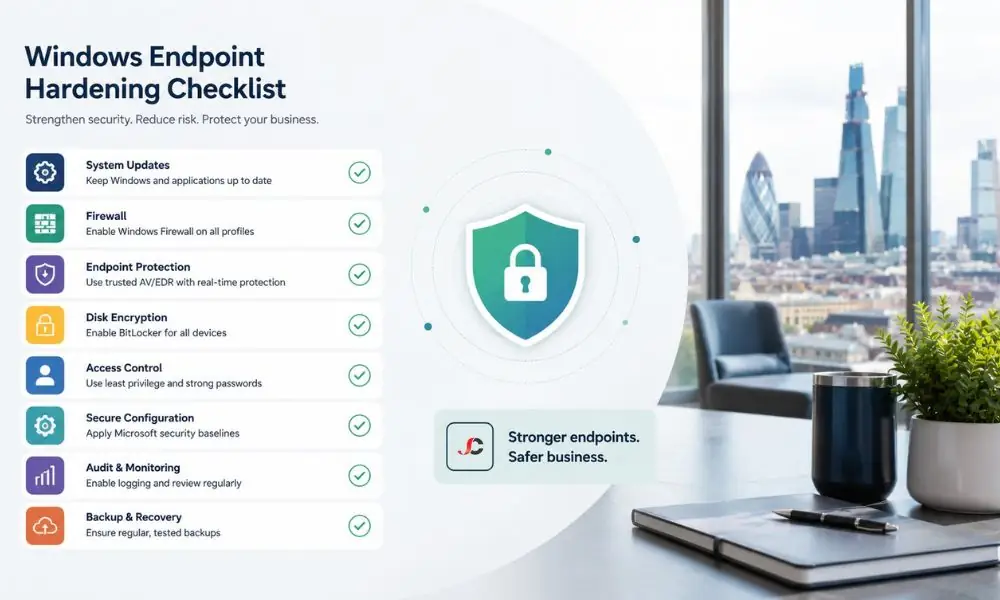
Key Takeaways
- Endpoints, not servers, are the gap: the top-level guidelines for securing hardware are limited to Windows Server and Active Directory and exclude normal computers, which are more commonly vulnerable.
- Configuration beats spending: since all these configurations are possible without any extra license fees through Windows 11 Pro, Microsoft Defender Antivirus, and Local Group Policy.
- Cyber Essentials alignment: every item maps to a Cyber Essentials control, directly supporting the certification that many finance, legal, and recruitment clients now require of suppliers.
- Scale through policy: applying baselines via Microsoft Intune turns a 15-step manual process into an enforced standard across all managed devices.
What is the Windows endpoint hardening checklist, and why does it matter for SMEs?
Windows endpoint hardening is the process of reducing the attack surface of a laptop or desktop by turning off unnecessary features, enforcing secure defaults, and applying the principle of least privilege. It matters because user devices are the most frequently targeted entry point, and out-of-the-box Windows favours usability over security.
Any device a user uses to connect to the business system, including laptops or desktops running Windows 11, can be referred to as an endpoint. Endpoints store emails, login credentials, and client information, making them targets for hackers and commodity ransomware attacks. The latest Windows 11 versions have enhanced the default settings from Microsoft; however, the security issues in a new installation cannot be overlooked. Endpoint security should be the basis of all cyber security solutions.
Threats are centred around the areas where employees operate. Whether it is phishing, password theft, or rogue macros, the endpoint is where it occurs, long before the server becomes relevant. By securing the device, one seals off all access routes.
How is hardening a Windows endpoint different from hardening a server?
Endpoint hardening protects end-user-controlled devices, such as laptops and desktops, from phishing, credential theft, and ransomware. In contrast, server hardening protects common infrastructure, such as domain controllers and file services. Endpoints focus on encrypting data storage, controlling applications, and securing identities; while for servers, the focus is on reducing roles, isolating the network, and auditing access.
The available security checklists are mostly focused on securing server activities, such as removing Windows Server roles, securing Active Directory, fine-tuning SMB signing, and securing domain controllers. These guidelines are important, although they do not guarantee that the computer a recruitment consultant or lawyer uses every day is secure.
The table below summarises where the two diverge in practice.
| Focus area | Windows endpoint hardening | Windows Server hardening |
| Primary threat | Phishing, ransomware, and credential theft | Lateral movement, domain compromise |
| Encryption | BitLocker with TPM and PIN on every device | BitLocker on volumes holding sensitive data |
| Identity | Windows Hello, MFA, Credential Guard | Tiered admin accounts, Privileged Access Workstations |
| Application risk | Office macros, untrusted executables | Server roles, services, legacy protocols |
| Management | Microsoft Intune device policies | Group Policy, configuration management tools |
A secure Windows endpoint baseline, therefore, emphasises the user, the credential, and the data on the disk. This distinction is the practical core of any endpoint hardening checklist for SMEs.
Which 15 Windows endpoint settings should you change first?
The fifteen settings below deliver the greatest risk reduction for the least effort. This Windows endpoint hardening checklist groups them into three areas: accounts and administrator rights, updates and on-device protection, and network and remote-access exposure. Each item maps to a Cyber Essentials control and can be enforced manually or through Microsoft Intune.
| # | Setting | What to change | Cyber Essentials control |
| 1 | Local administrator account | Rename and deactivate the built-in account | Secure configuration |
| 2 | Standard user rights | Remove users from the local Administrators group | User access control |
| 3 | Account lockout and screen lock | Lock after failed attempts and short idle timeout | Secure configuration |
| 4 | Windows Update for Business | Enforce a patch deadline and reboot window | Security update management |
| 5 | BitLocker encryption | Enable with TPM and a startup PIN | Secure configuration |
| 6 | Microsoft Defender Antivirus | Enable cloud-delivered protection and tamper protection | Malware protection |
| 7 | Attack Surface Reduction rules | Enable ASR rules in block mode | Malware protection |
| 8 | Controlled Folder Access | Protect document folders from ransomware | Malware protection |
| 9 | Windows Hello for Business | Replace password-only sign-in with MFA | User access control |
| 10 | Credential Guard and LSA protection | Isolate credentials from theft | Secure configuration |
| 11 | Windows Firewall | Enable on all profiles, block inbound by default | Firewalls |
| 12 | SMBv1 | Turn off the legacy file-sharing protocol | Secure configuration |
| 13 | Office macros | Block macros from the internet | Malware protection |
| 14 | Removable USB storage | Restrict or block by policy | Secure configuration |
| 15 | Endpoint logging | Forward device logs to Defender or a SIEM | Secure configuration |
How should you configure accounts and local administrator rights?
Rename and deactivate the local built-in administrator account, ensure that no standard user is part of the local administrators group, and work using a standard account daily. Establish an account lockout threshold and set a 15-minute screen-lock timeout.
Being an obvious target, the built-in administrator should be disabled and replaced by a managed account with a name. When the unique administrator password for the local computer needs to be changed, the Windows Local Administrator Password Solution manages the change automatically. Using a standard user account helps minimise potential damage in the event of an infection because malware runs with that account’s privileges only.
How do you lock down updates, BitLocker, and Defender?
Windows Update for Business needs to have an enforceable deadline. It is also recommended that BitLocker be configured using TPM and a startup PIN. Lastly, Microsoft Defender Antivirus must be configured using tamper protection, cloud protection, attack surface reduction rules, and controlled folder access. With these strategies, any attacks will be avoided.
Unpatched software remains one of the major causes of security breaches; setting a deadline to install patches is even more important than any other setting. BitLocker prevents a lost or stolen machine from becoming a data breach incident. Defender, hardened with ASR rules, blocks the script and macro techniques that commodity ransomware relies upon, and is best operated through Defender for Endpoint for centralised visibility across the fleet.
Which network and remote-access settings reduce exposure?
Windows Firewall should be enabled for all profiles with default inbound traffic blocking; the SMBv1 protocol needs to be disabled; Office macros need to be restricted from the internet; removable USB drives need to be restricted; and central logging of endpoints is required.
The SMBv1 protocol is outdated, a key component of the WannaCry attack, and should be disabled unless there is evidence of legacy reliance on it. The use of USB storage can limit malware introduction into the network and prevent data exfiltration, both of which are common issues in legal and financial organisations.
How does endpoint hardening support Cyber Essentials certification?
There is a direct correlation between the 15 questions and the five key technical security controls included within Cyber Essentials: Firewalls, Secure Configuration, User Access Control, Malware Protection, and Security Update Management. Completing the checklist would bring the company significantly closer to certification.
Cyber Essentials is becoming an important criterion in contracts, especially when dealing with financial and legal clients and public-sector organisations. This is because the Cyber Essentials scheme evaluates not only servers but also end-user devices; therefore, an endpoint baseline would cover most of the evaluation criteria. The UK National Cyber Security Centre publishes authoritative device security guidance for Windows that aligns closely with the controls listed above.
The documentation process is as significant as the configuration itself. The assessors need proof that the configurations are always maintained, but are not configured once at the individual system. Organisations that prefer a managed route can align this work with broader IT infrastructure security services.
What tools help SMEs apply and maintain hardening at scale?
Microsoft Intune provides the functionality needed to implement and enforce security baselines and device configuration settings; Microsoft Defender for Endpoint detects and responds to threats; and MDM enrols devices in policies. Overall, all the technologies listed above transform the manual checklist into an automated process.
A manual approach to hardening cannot be scaled and slowly drifts as the configuration changes with time. Security baselines in Intune offer pre-approved configuration options for all enrolled devices, thereby highlighting any deviations from those baselines. Microsoft publishes recommended baselines and per-setting documentation on Microsoft Learn, which provides a tested starting point.
Baseline maintenance is an exercise that requires continuous effort, not just a once-in-a-while activity. The Windows hardening checklist for the endpoint should be considered as a living document; it requires annual evaluation of its relevance against the latest recommendations of Microsoft and CIS. Device hardening pairs naturally with structured mobile device management for full lifecycle control.
What is the difference between endpoint hardening and antivirus?
The function of an antivirus is to detect and eliminate malicious software. However, endpoint hardening makes an attack less likely to succeed. This includes turning off unnecessary components, using a least-privilege policy, and enabling encryption. Therefore, the endpoint hardening process will not replace the antivirus but will supplement its functions.
Can you harden Windows endpoints without Microsoft Intune?
Yes. Every setting in this Windows endpoint hardening checklist can be applied through Local Group Policy or the Local Security Policy editor on an individual device. Intune is not mandatory, but it enforces configuration consistency across many devices and reports on drift, which manual methods cannot reliably do.
Is Windows endpoint hardening required for Cyber Essentials?
Effectively, yes. The Cyber Essentials scheme evaluates devices used by end-users based on five controls, which are met by the configurations on this list. Even though the scheme does not prescribe this list, an organisation cannot be Cyber Essentials compliant without using equivalent configurations.
Does hardening slow down Windows laptops?
No, in all cases. Switching off unnecessary services, implementing the principle of least privilege, and encrypting the hard drive do not affect system performance in any way, since BitLocker encryption requires no CPU power, and Defender works flawlessly. The only issue might arise from logging, but endpoints hardly perform it.
How long does it take to harden a fleet of laptops?
Configuring a single device manually takes one to two hours. Using a Microsoft Intune security baseline, the same standard deploys to hundreds of enrolled devices within a few hours of policy assignment, with no per-device effort. The larger task is to evaluate the baseline before the broad rollout to avoid disruption.
How often should endpoint hardening baselines be reviewed?
At least once a year, and whenever there is a new Windows feature update, the guidelines of Microsoft and the Centre for Internet Security will be reviewed and may be updated as current issues and features emerge. Compliance monitoring with Intune provides a continuous solution to identify drift between reviews.
What is a security baseline in Microsoft Intune?
The security baseline is a predefined set of security settings offered by Microsoft, delivered as a single policy to enrolled devices. The security baselines could include guidelines for configuring the following features, among others: BitLocker, Windows Defender, and credentials protection.
Should SMEs follow CIS Benchmarks or Microsoft security baselines?
Most SMEs should start with Microsoft security baselines, which are easier to deploy through Intune and align with the Windows ecosystem. CIS Benchmarks are more granular and better suited to organisations with stricter regulatory obligations—the two overlap, providing a credible, defensible foundation for endpoint hardening.