

Migrate user Home folders to onedrive or add the folder to onedrive. The cost of server storage, slow VPN Connection, and inability to access files and folders on portal devices like mobiles and tablets led to moving files and folders to Onedrive, having exponential growth in the last decade. Onedrive has substantial storage and is available at a fraction of the cost and, most of the time, bundled with existing Office 365 subscriptions.
If you are considering moving your users to Office 365 and looking to reduce cost and increase productivity, please complete the callback request form to request a call from an Office 365 expert.
Here’s what you need to know about transferring home folders to OneDrive.
Windows Known Folder Move to OneDrive
There are three primary advantages of moving or redirecting users’ home folders or Microsoft Windows known folders (Pictures, Documents, Desktops, Camera Roll and Screenshots) to Microsoft OneDrive for all the users in your workgroup or domain network.
- Your users can continue using their folders without any change, and users would not have to change their daily working habits to save files to OneDrive.
- Saving home folders to OneDrive backs up your users’ data in the Microsoft cloud and gives users global access to their documents and files.
- All the users automatically protect their files by saving them to Microsoft Office 365 in OneDrive for Business.
For these reasons, we recommend migrating user folders to OneDrive if your company has five or more employees. You would need experience configuring group policies or experience with Microsoft Endpoint Manager.

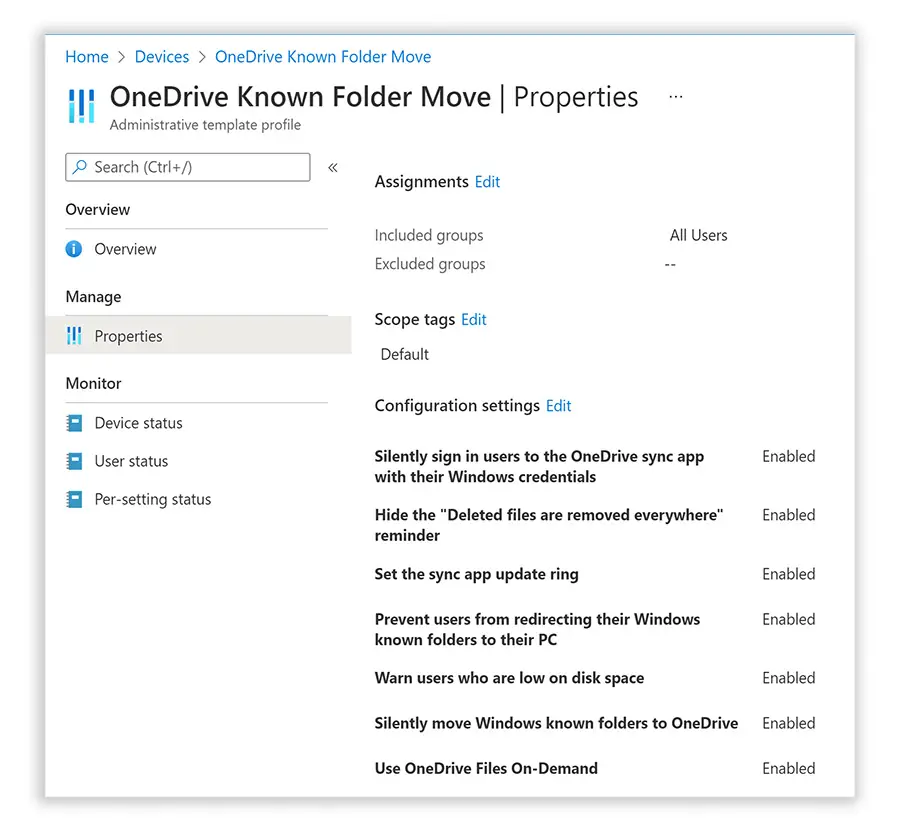
Well, there are a few clear reasons why you should add folders to OneDrive for Business:
One of its key features is OneDrive for Business’s ability to share documents (and folders) with internal and external users. Here are additional benefits of migrating home folders to OneDrive
- Integrate seamlessly with Microsoft Office 365
- You may explore a variety of file kinds without having to install the program that created them.
- Office Online supports 97 languages.
- Offers free 5 GB of personal storage space, with options for 100 GB, 1 TB, and 6 TB of personal/family storage
- Provides plans for 1 TB of storage capacity per business user
- Transport Layer Security (TLS) encryption is used to secure files while they are in transit
- AES256 encryption is used to encrypt each file while it is at rest. A set of master keys is kept in Azure Key Vault to encrypt these special keys.
- Provides Personal Vault as a secured place in OneDrive that requires a strong authentication technique or a second round of identity verification
Manually Moving Your Home Folders to OneDrive
Another Easier way to migrate your documents, pictures, and other files from your home folders to OneDrive is to manually copy all the folders from your Home folders to your OneDrive folder, which is under Windows Explorer, after signing in. You automatically sync your files and folders by moving the home folders to Onedrive.
Your OneDrive icon is coloured blue at the bottom right of the taskbar. A progress sync status will show you the number of files synchronised and any conflicts or errors. This is one of the most popular ways users manually move their home folders to OneDrive for Business.
Manual copying of the home folder to OneDrive is recommended for many users’ home folders. PowerShell scripts and a CSV file help automate the process and simplify syncing a folder to OneDrive when migrating more home folders.
If you want to migrate user home folders to OneDrive for Business in Office 365, please book a free consultation. We will happily provide you with a solution that fits your needs. You can also see more information on the benefits of using Microsoft to back up your home folders to OneDrive.
If you want to migrate user folders to onedrive or silently move Windows-known folders to onedrive, but it’s not working, please get in touch with Server Consultancy to learn how to sync folders to onedrive.
Can you transfer folders to OneDrive?
Yes, you can transfer folders to OneDrive—and it’s one of the most innovative ways to modernise how your users access and store their files. Whether moving individual folders or performing a large-scale migration of user data across your business, OneDrive makes it easy to store, sync, and share files securely in the cloud.
When it comes to a structured move, especially for businesses looking to migrate user home folders to OneDrive, there’s more to it than just copying and pasting. You’ll want to:
-Audit existing home folder structures
-Map user identities to Microsoft 365 accounts
-Use tools like Known Folder Move or OneDrive Group Policy settings to automate redirection
-Ensure data integrity, security, and permissions are preserved during the transfer
-Optimise folder structures for easier access in the cloud
This process frees up local storage, reduces dependency on on-prem servers, and improves remote access, security, and collaboration across your team.
Of course, planning and executing a smooth migration takes expertise. Many businesses turn to Server Consultancy—the best IT support company in London—to manage their transition from traditional file servers to OneDrive. We handle every detail, from initial planning to post-migration support, ensuring a seamless experience without disrupting your users.
How do I sync my local folders to OneDrive?
To sync your local folders to OneDrive, you can follow these steps:
1. Open the OneDrive app on your computer, go to the OneDrive website, and sign in to your account.
2. Navigate to the folder where you want to sync your local files.
3. Drag and drop the files you want to sync into the OneDrive folder. Alternatively, you can right-click on the folder or file and select “Copy” or “Cut”, then right-click on the OneDrive folder and select “Paste”.
4. Wait for the OneDrive app to finish uploading the files. The time it takes to sync will depend on the size and number of files you upload and your internet connection speed.
Once the sync is complete, your local files will be accessible from any device with OneDrive installed and signed in to your account. Any changes to the files on one device will be automatically synced to all other devices connected to the same OneDrive account.
How do you migrate Google Drive to OneDrive with the Migration Manager?
To migrate your files from Google Drive to OneDrive using the OneDrive Migration Manager, you can follow these steps:
1. Download and install the OneDrive Migration Manager on your computer.
2. Launch the OneDrive Migration Manager and select “Google Drive” as the source service.
3. Sign in to your Google Drive account and select the files you want to migrate to OneDrive.
4. Choose “OneDrive” as the destination service and sign in to your OneDrive account.
5. Select the destination folder to migrate your files and start the migration process.
6. Wait for the migration to complete. The time will depend on the size and number of migrated files and your internet connection speed.
After the migration, your Google Drive files will be accessible from OneDrive. However, the OneDrive Migration Manager only migrates files, not permissions or sharing settings, so you must set those up again in OneDrive. Additionally, you may want to review your migrated files to ensure they were transferred successfully.


